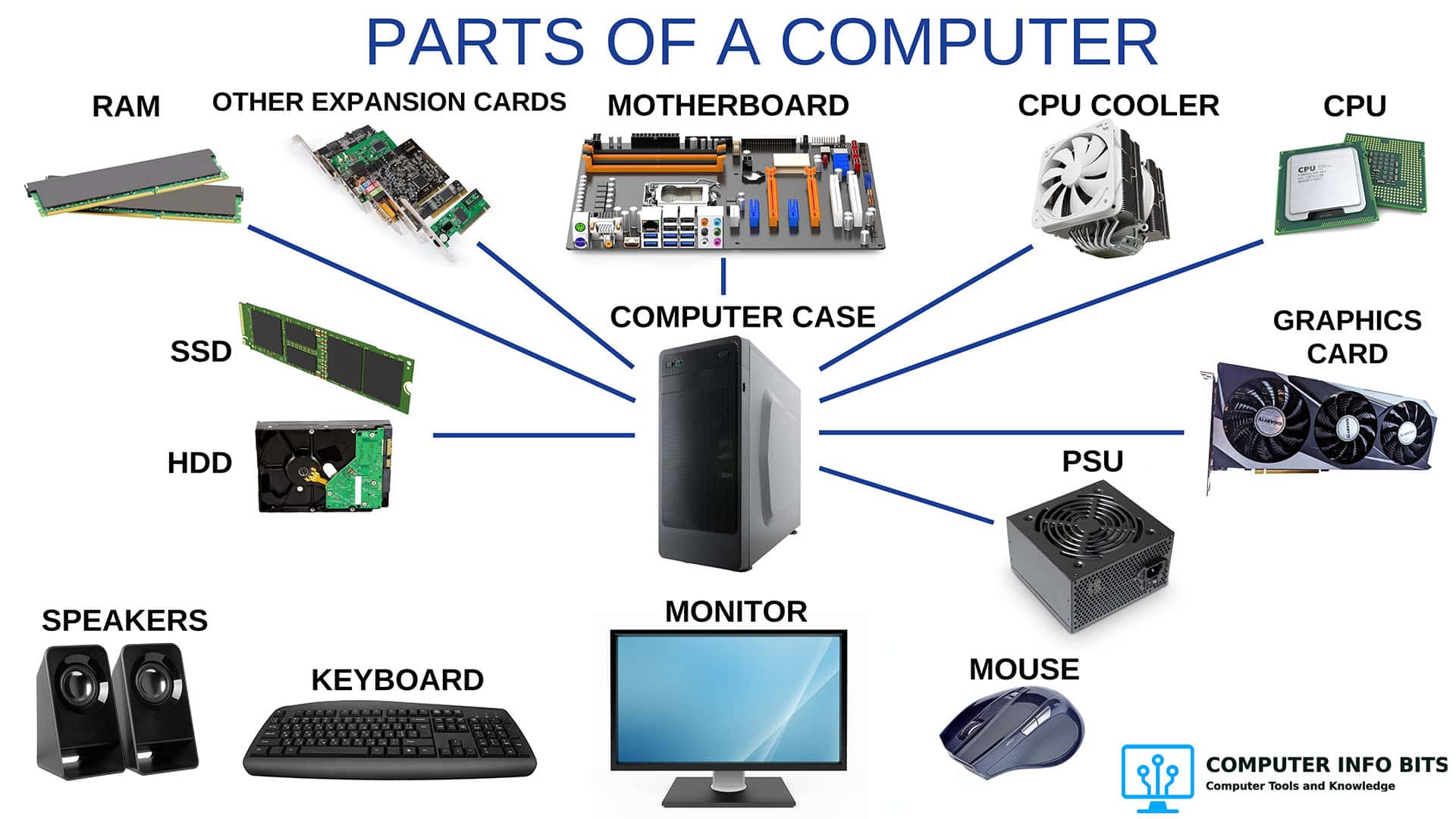
1. Start with the whole PC
Parts of a Computer and Their Functions
Use the overview diagram to put a name to each main component before exploring the individual parts in more detail.
Identify every PC part →Computer Guides and Tutorials help you identify PC parts, investigate hardware problems, and plan upgrades for a Windows PC. New to the hardware? Follow the reading order below. If something is wrong, choose a symptom to find your first checks.
New to PC hardware? Read these three guides in order. Start with the whole computer, then explore its connections and processor. If you already know the basics, skip to the part you want to understand.
1. Start with the whole PC
Use the overview diagram to put a name to each main component before exploring the individual parts in more detail.
Identify every PC part →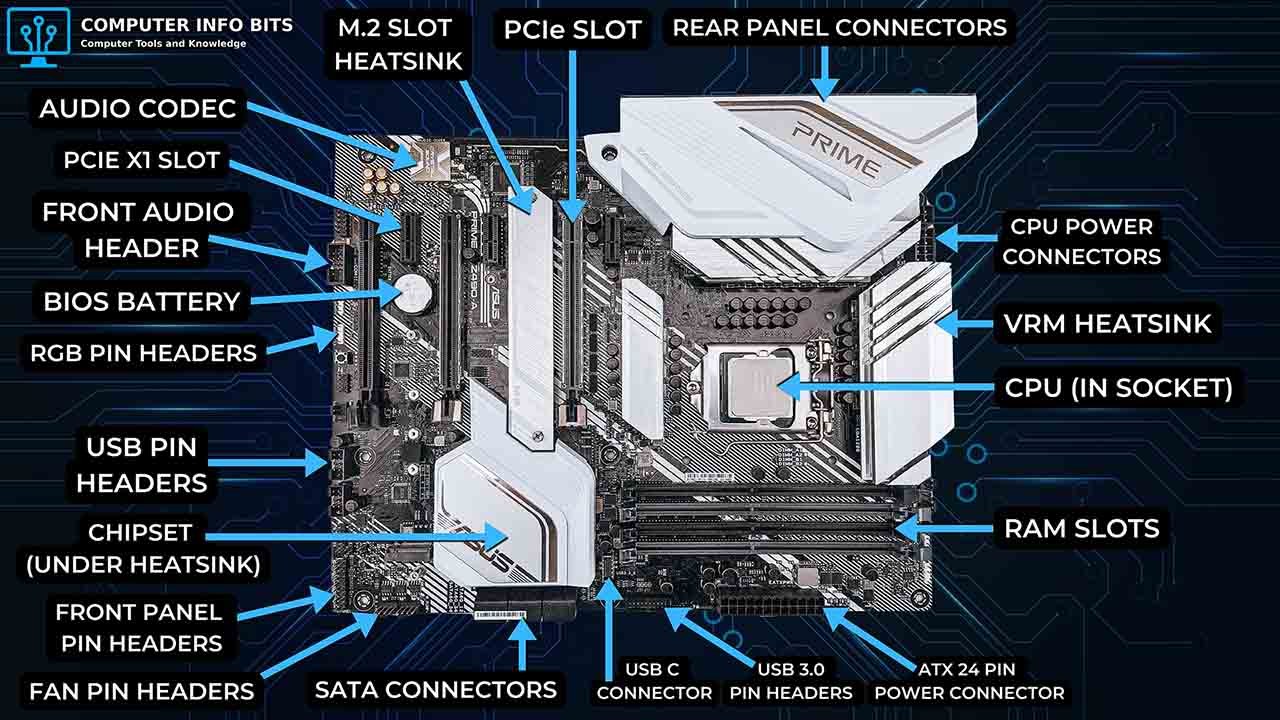
2. Find the connections
Move from the full PC to its main board. Locate the sockets, slots, and ports for the parts you just learned about.
Identify motherboard parts →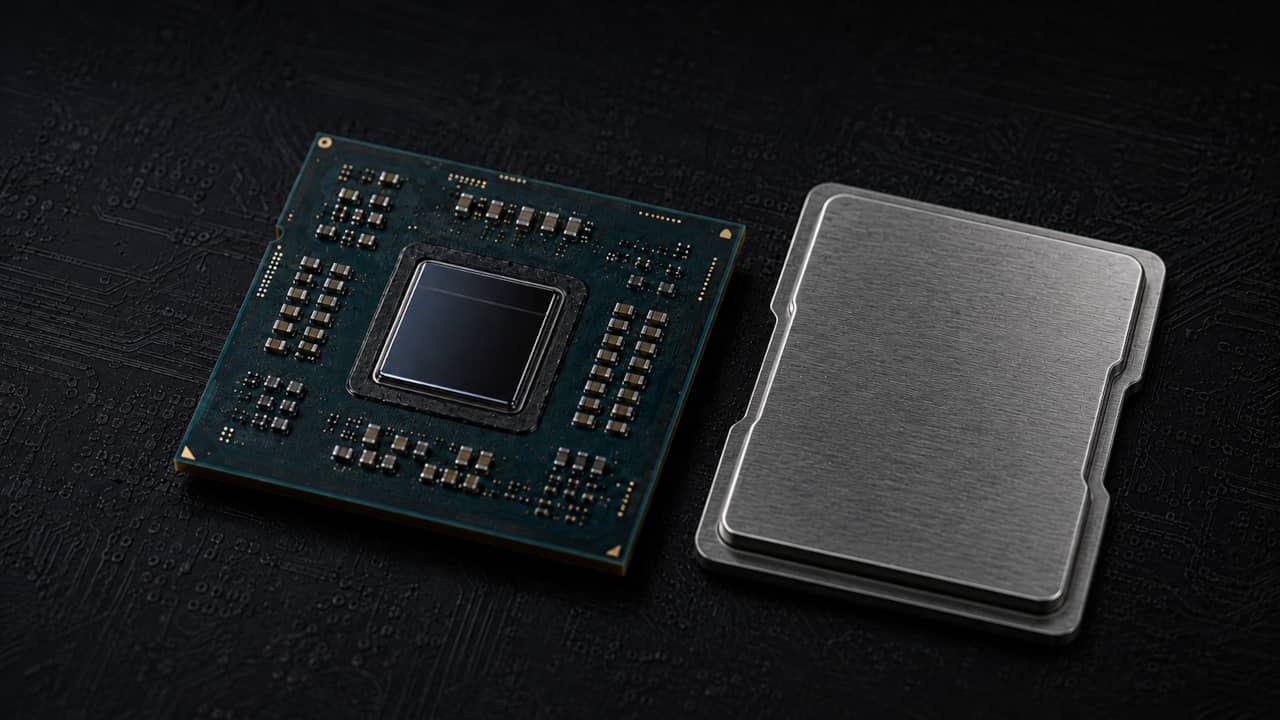
3. Look inside the processor
With the CPU's place on the board clear, explore its internal parts and follow how they work through an instruction.
See how a CPU works →Write down what happens, when it started, and any recent changes. Choose the closest symptom below, work through one guide, and record the results before moving to another test.
A freeze alone does not identify the failed part. Intel's system freezing checklist covers several possible causes, including heat, power, memory, and software.
Choose a specific goal before buying parts or changing settings. Note your current results, make one change, and compare afterward. Use the guides below to set up your case fans or place your RAM.
For a slow Windows PC, try Microsoft's PC performance checks before shopping. They cover startup apps, storage space, updates, and other fixes to try with your current hardware.

Improve case cooling
Use this after checking temperatures or when planning a desktop build. Work through fan placement, airflow direction, and cooling checks.
Set up better airflow →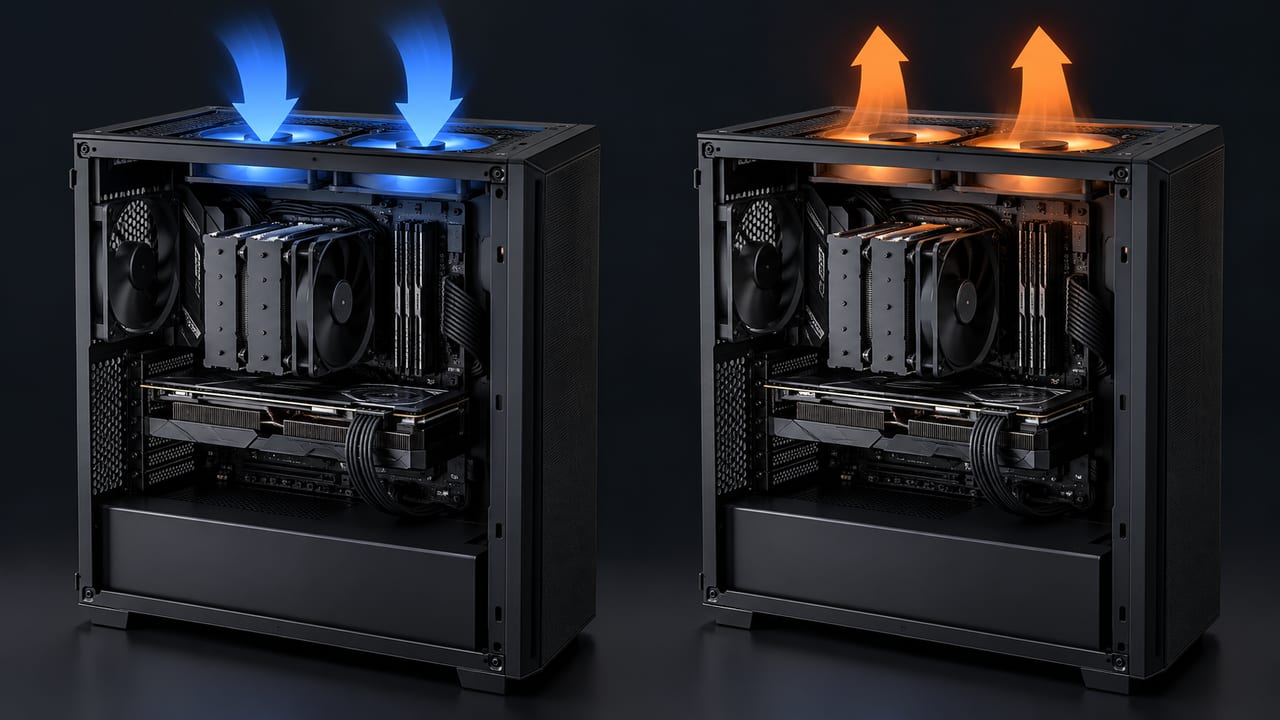
Set the roof fans
See which way roof fans should blow in a front-to-back case, the one mount where intake can help, and how to set a top radiator.
Point your top fans the right way →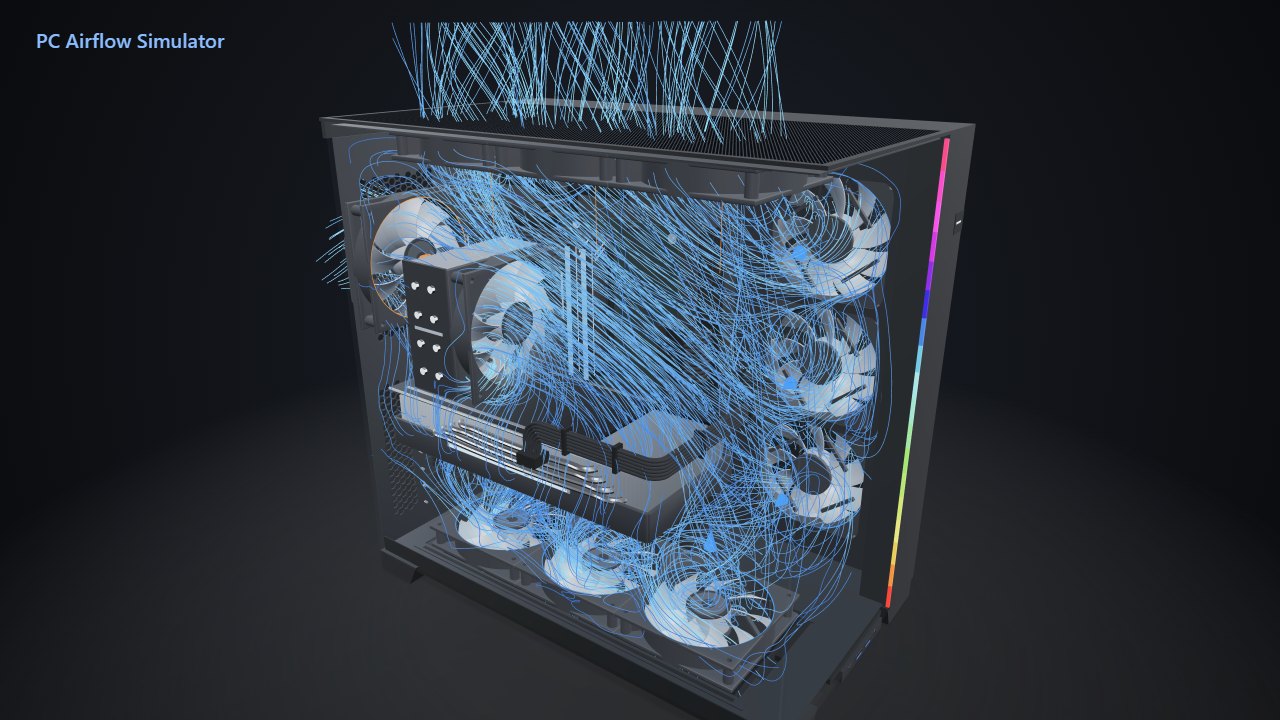
Fill a Lian Li O11 case
Plan every fan mount in an O11 Dynamic, EVO or XL, from side and bottom intakes to radiator spots and reverse-blade fans.
Plan your O11 fans →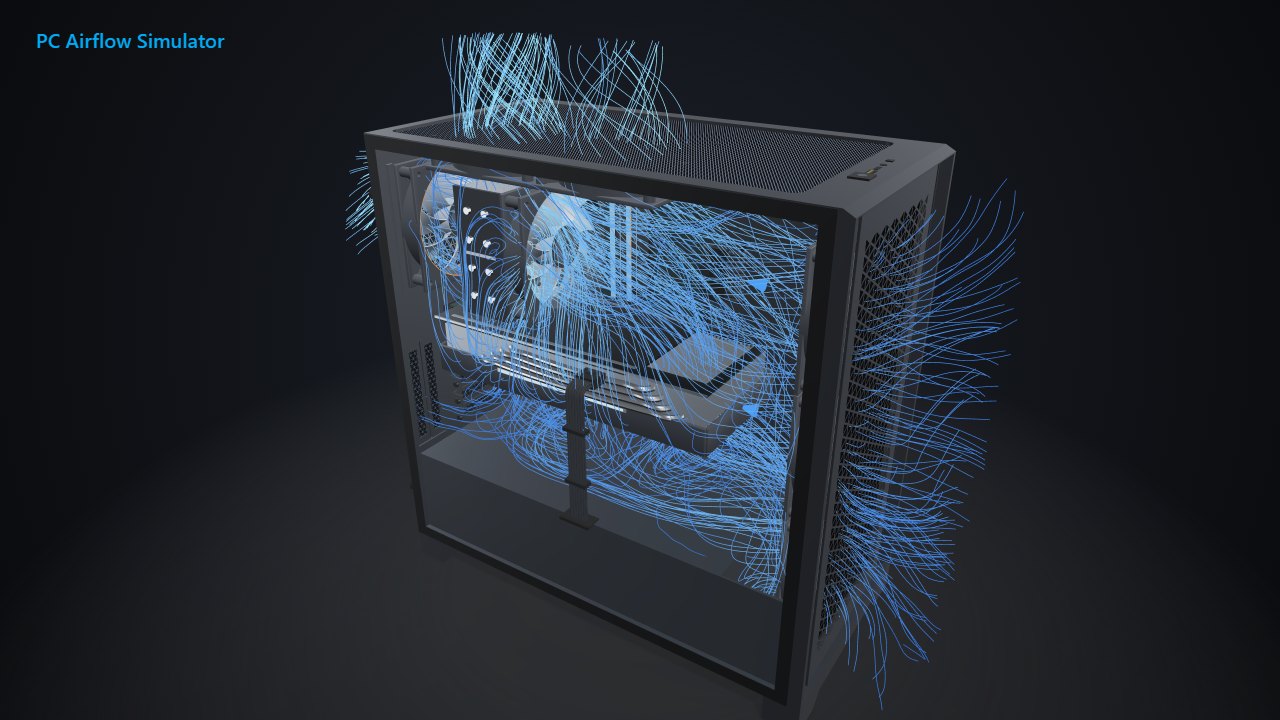
Add fans to a Corsair 4000D
Fill the empty front and top mounts in the 4000D Airflow, decide on the front filter, and pick a radiator spot.
Plan your 4000D fans →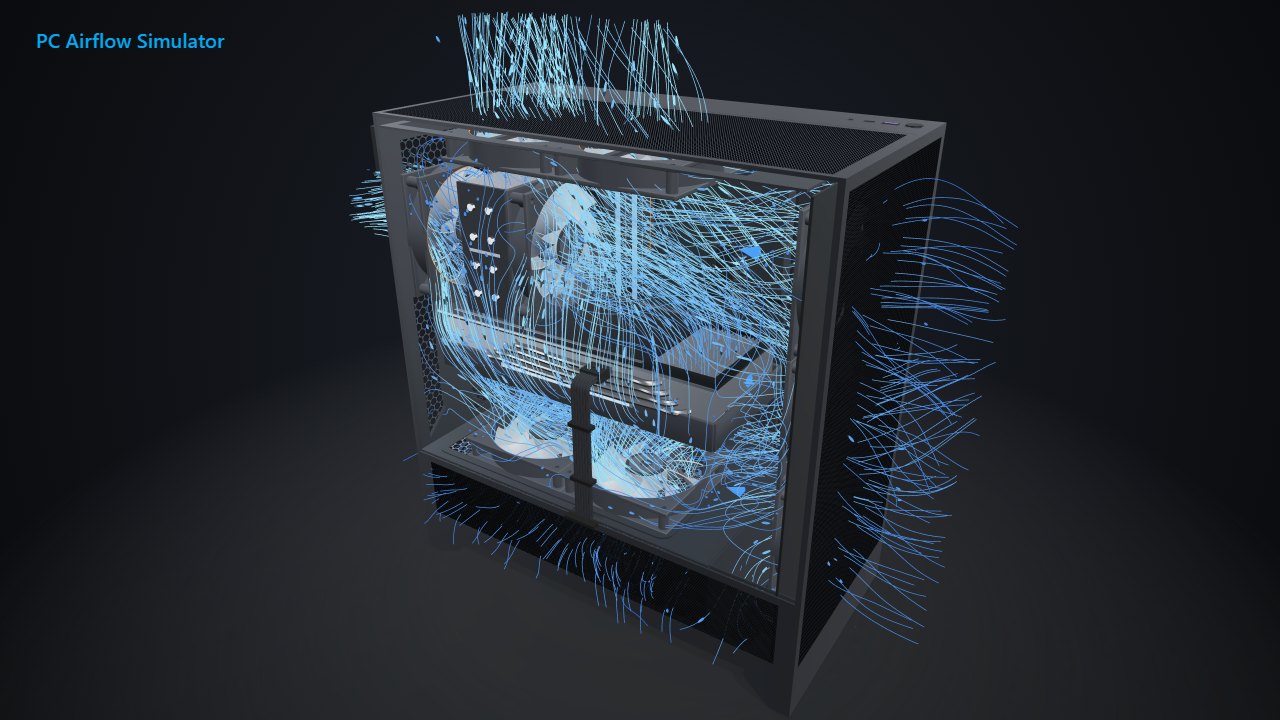
Fill an NZXT H5 Flow
Plan the front, top and bottom fans in the 2024 H5 Flow, and see when the two mounts under the graphics card are worth it.
Plan your H5 Flow fans →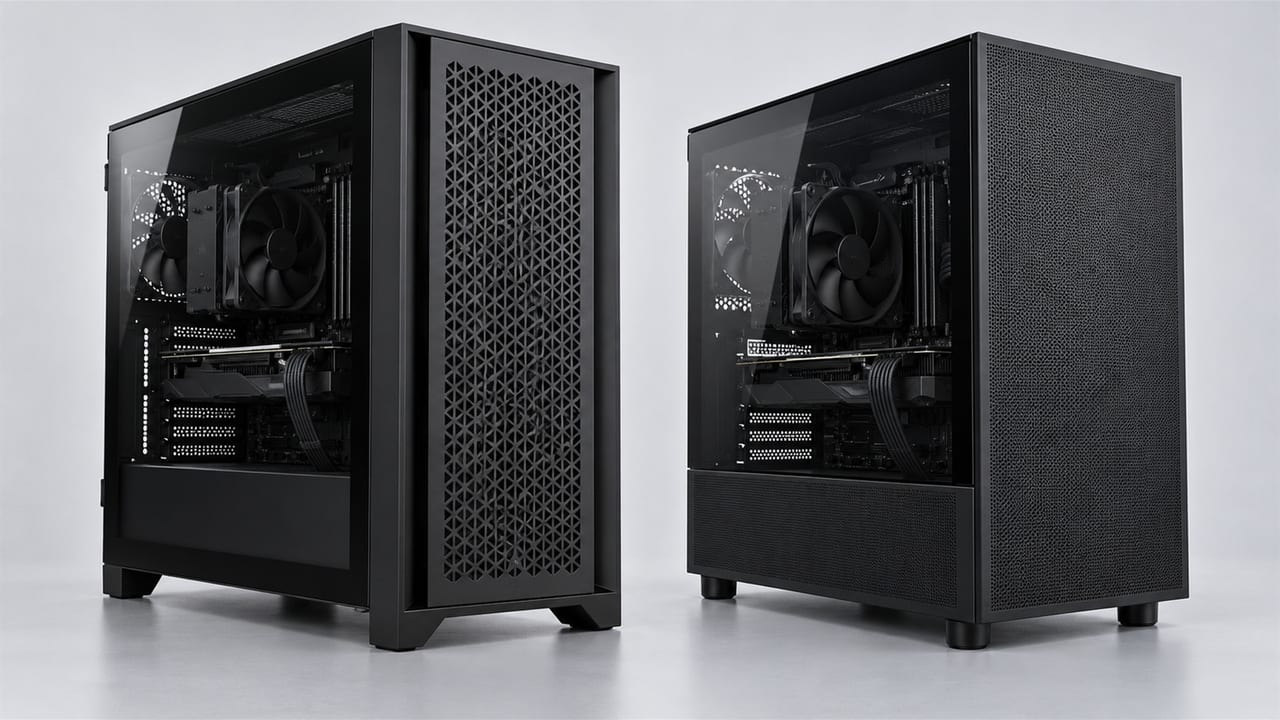
Choose between two cases
The same graphics card, CPU and fans in both cases, plus how they compare on graphics card room, radiators and dust filters.
Compare the two cases →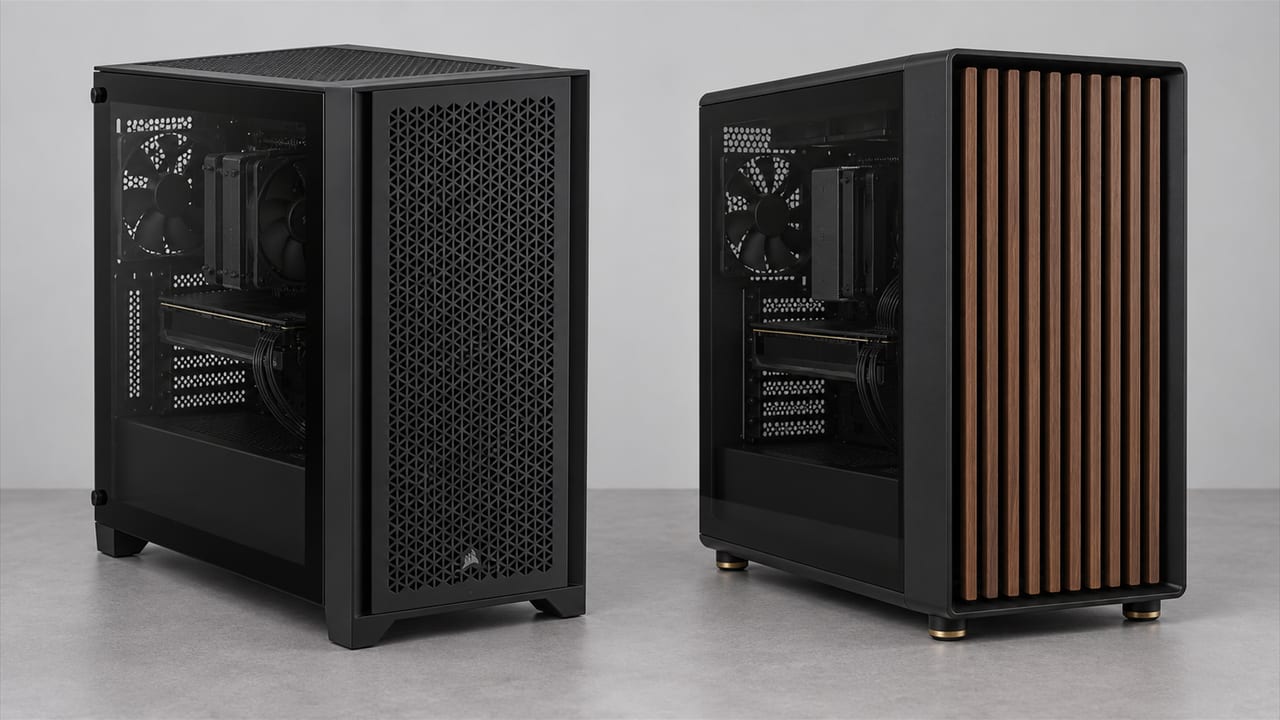
Choose between two cases
The same graphics card, CPU and fans in both cases, what the Mesh North's side fans add, and which one leaves more room for a radiator.
Compare the two cases →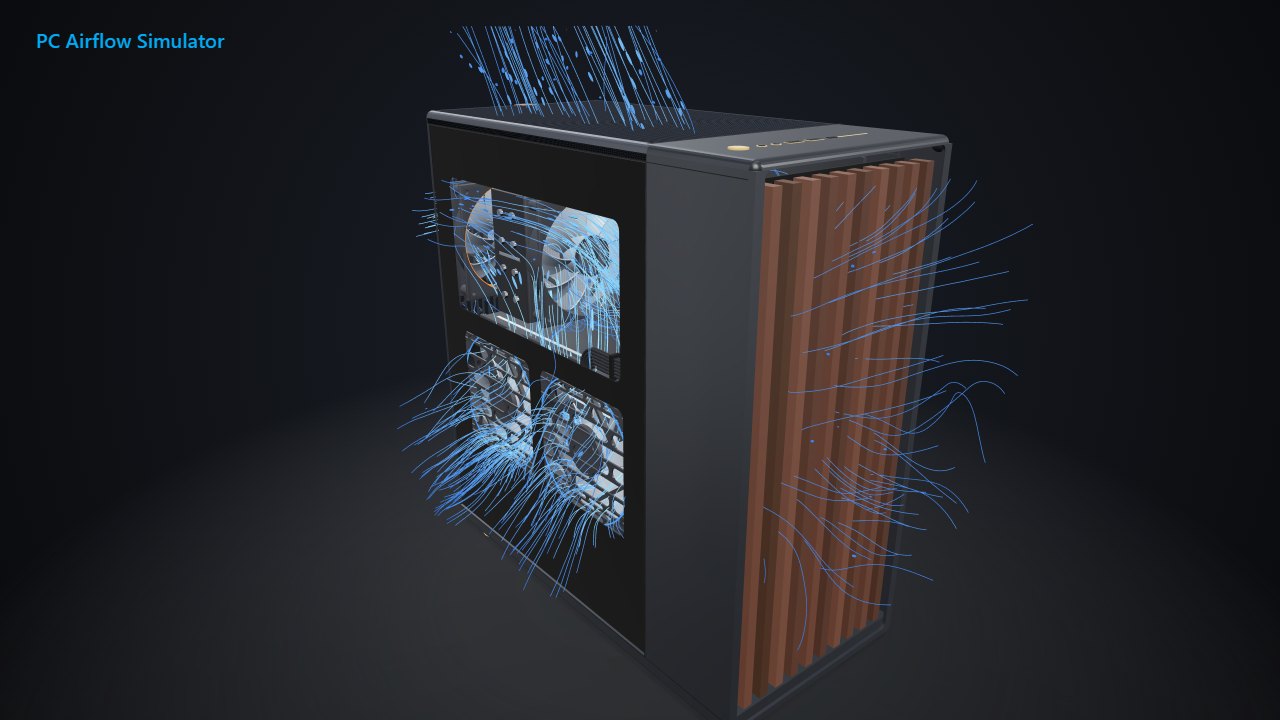
Add fans to a Fractal North
Add the rear, top and side fans the North ships without, and see what two side fans did for the graphics card in our model.
Plan your North fans →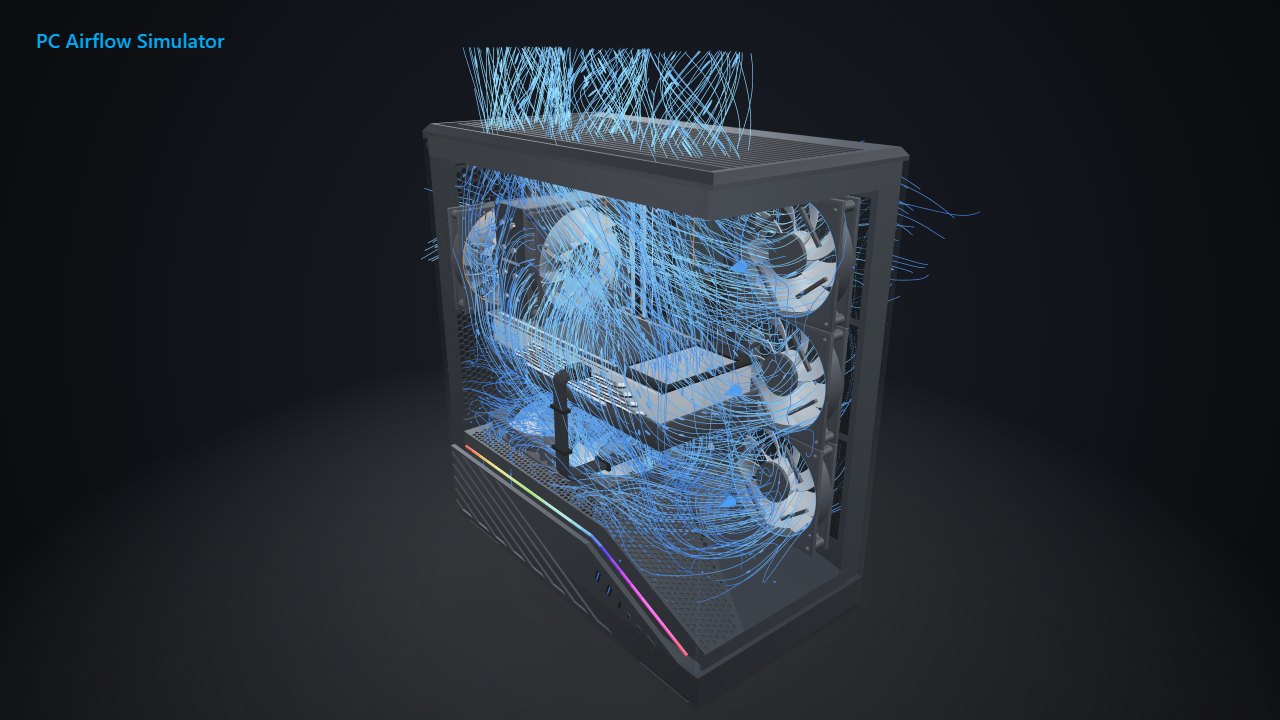
Fill a Lian Li V100
Set the side, rear, roof and floor fans in the Vector V100, and see why the roof fans beat the floor ones in our model.
Plan your V100 fans →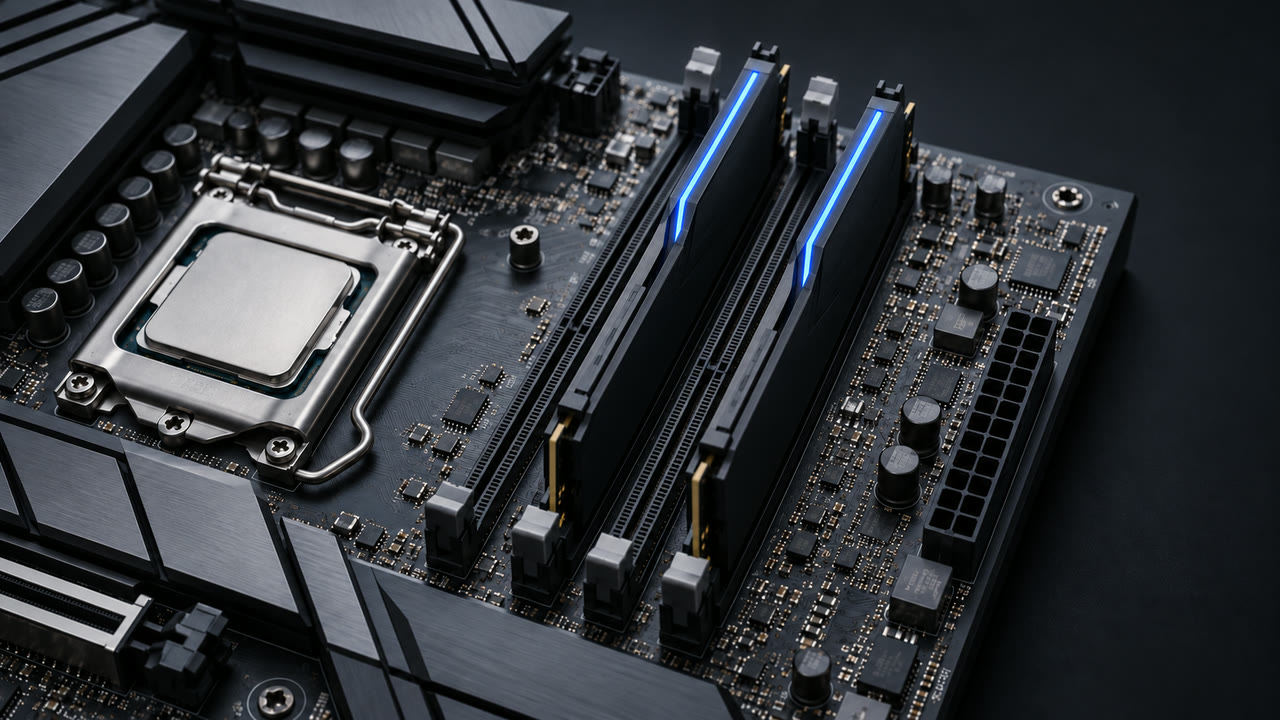
Install new memory
Find A2 and B2 on your board, see where one, three or four sticks go, and confirm dual channel in CPU-Z.
Place your RAM sticks →Marlo Strydom writes these guides from more than 20 years of work with computer hardware, Windows systems, electronics, and technical support. If your topic is missing, suggest it through the contact page.
Suggest a computer topic →