Should Top Case Fans Be Intake or Exhaust?
By Marlo Strydom · Last updated



Front fans pull air in, and the rear fan pushes it out. The fan on the roof is where the guessing starts, and a wrong guess can slow the air your graphics card needs.
For most cases, the answer is exhaust. We tested both directions in a 3D airflow simulation and checked the advice from fan maker Noctua. There is just one spot where the rule flips.
Top Fan Rules That Fit Most Cases
- Use exhaust by default: in a front-to-back case, top fans push warm air out, starting with the mount closest to the back.
- Leave the rear top fan blowing out: in our simulation, turning it into an intake slowed the air near the graphics card and did little for the CPU cooler.
- Try intake only near the front: a top fan there can feed a tower air cooler fresh air. Give it a dust filter.
- Blow air out through a top radiator: this setup favors the graphics card, with front or side fans bringing air in.
- Confirm it in your own PC: check which way each fan blows, then change one thing at a time and compare temperatures.
Why Exhaust Is the Default Direction
Noctua's airflow guide recommends one path for air through the case: in at the front, past the parts, and out the back and top. In that layout, front fans are intake, rear fans are exhaust, and top fans are exhaust too.
Noctua notes that most of its tower air coolers blow from front to back when installed the standard way. A top exhaust fan directly above or slightly behind the cooler works well with that flow. Noctua's fan placement table adds the first top fan as an exhaust in the mount closest to the back.
Fans that share one path help each other. Noctua warns that two air streams meeting head-on create turbulence, which hurts cooling and adds noise.
What Happened When We Flipped the Rear Top Fan
We built a mesh-front mid-tower with three front intakes, one rear exhaust, and one fan in the rear top mount. Then we turned only that top fan around and ran the same case again in our 3D airflow simulator.
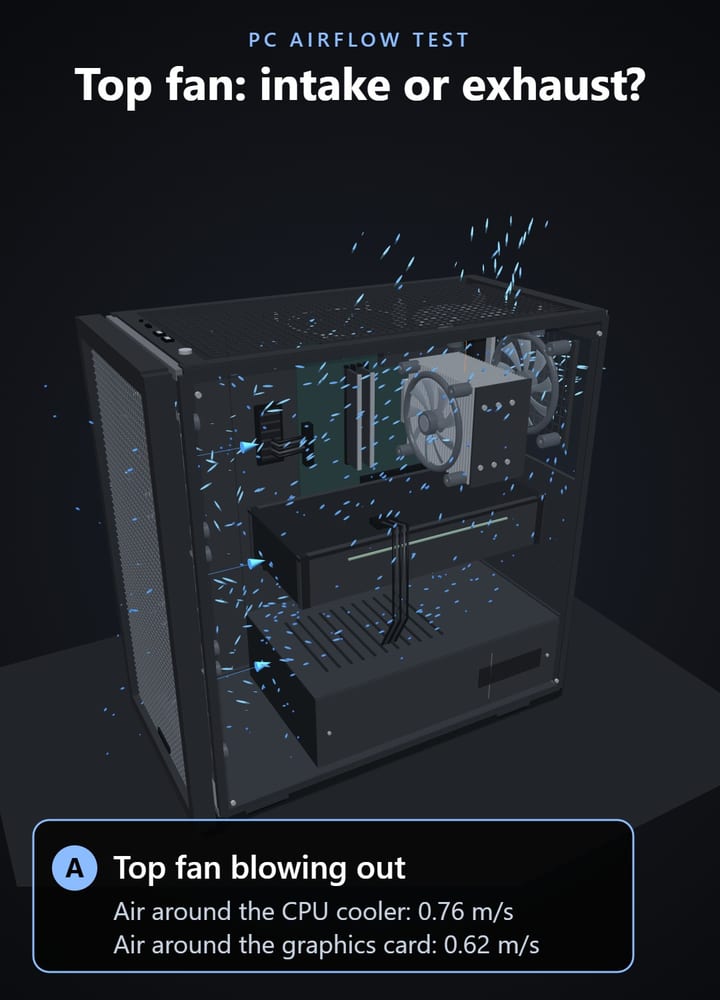
| Measurement | Top fan blowing out | Top fan blowing in |
|---|---|---|
| Air speed near the CPU cooler | 0.93 m/s | 3% faster |
| Air speed near the graphics card | 0.58 m/s | 4% slower |
| Case pressure | +1.9 Pa | +5.7 Pa |
With the fan blowing in, four fans pushed air into the case and only the rear fan pushed it out. Pressure inside the case nearly tripled, and the air near the graphics card slowed. In a second run at finer detail, it slowed by 8%, while the CPU cooler gained only 2%. You can total your own intake and exhaust ratings in our fan airflow calculator.
These numbers come from a simulation of air movement, not a temperature test. It doesn't model heat, so use them to compare the two directions, then confirm with real temperatures in your own PC. For a rough heat check of your own parts, try the cooling calculator.
When a Top Intake Can Help
Noctua makes one exception. With a tower-style air cooler, a top fan close to the front of the case can be an intake that feeds the cooler fresh air.
In Noctua's fan placement table, that front top intake only comes in as the sixth fan, after the front, rear, and rear top fans. A bottom intake is the other choice at that step.
Your case may make that choice for you. The Corsair 4000D Airflow has no bottom mounts, so its sixth fan goes on the roof. The NZXT H5 Flow has two, right under the graphics card. In the Fractal North, Noctua's own tests made that front top fan an intake.
Position matters. The fan in our test sat in the rear-most top mount, where Noctua keeps an exhaust.
Put a dust filter on any top intake. Intel's PC cooling guide notes that intake fans still bring dust in, and filters help catch it before it reaches the parts.
Top Radiators Work Best Blowing Out
An AIO radiator on the roof should usually push air out. Noctua recommends a top radiator with exhaust fans for the lowest graphics card temperatures, paired with front or side intake fans so the radiator gets fresh air. In a glass-front case like the Lian Li O11 Dynamic EVO, those intakes go on the side and bottom.
If CPU temperature matters more, Noctua suggests a front or side radiator with intake fans, plus top and rear exhausts. That front setup has a cost: in another of our simulations, a 360 mm front radiator cut the air coming into the case by 41%.
Check Your Own Case
- Read the fan frame: Intel explains that the side with the sticker, wires, or grille is usually the side that blows air out.
- Test from outside the case: our fan placement guide shows a safe tissue test for each vent.
- Change one fan at a time: run the same game or task before and after, and compare CPU and GPU temperatures in a tool like HWiNFO or our free PC Reporter.
- Plan it first: try both directions in the airflow simulator before you move any hardware. The full simulator comes with Computer Info Bits Pro, and one case type is free as a preview.
Related Posts