Why Is My FPS Lower Than It Should Be?
By Marlo Strydom ·



A video showing 140 FPS can make your own 70 FPS look like a broken PC. Yet a different scene, graphics preset, render scale, or laptop power mode may explain much of the gap. If the tests truly match, a frame cap, the wrong GPU, heat, or a busy CPU may be holding the game back.
You can narrow it down without guessing or buying parts. Record one repeatable run, change one setting, and watch what the frame rate does.
Find the Missing Frames in Six Checks
- Match the test: same game scene, resolution, preset, ray tracing, and upscaling.
- Measure a repeatable run: note average FPS and the slowest frames, not a brief peak.
- Check for a hard limit: a steady 60 or 120 FPS often points to a cap, VSync, or a power-saving feature.
- Lower render resolution once: a large FPS gain points toward GPU load. Little change calls for more CPU, cap, or power checks.
- Watch power and heat: a laptop on battery or a PC that slows as it warms up needs a different fix from an overloaded GPU.
- Clear the clutter: close busy background apps, then update the game and graphics driver.
Match Your Test to the Result You Expected
Compare the same game version and scene at the same display resolution, render scale, graphics preset, ray tracing setting, and upscaling mode. “1080p” on a video does not tell you whether the game rendered every frame at native 1080p. Intel's frame rate guide explains how render scaling, shadows, reflections, and lighting change the work the PC must do.
If you are comparing with your own older result, note what changed since then: a game patch, driver, graphics setting, new monitor resolution, or laptop power mode. If only one game is slow, start with that game's settings and updates. If every game fell at once, check system-wide settings first.
No benchmark for your exact parts? Our FPS calculator gives a rough range for your CPU, graphics card, game, and settings. Treat it as a starting point, not a measurement.
Measure the Gap in the Same Scene
Use the game's built-in benchmark if it has one. Otherwise, replay the same short section twice. Keep the settings and camera path as similar as you can. NVIDIA FrameView can log FPS and frame times on a wide range of graphics cards.
Write down average FPS and the 1% low. A low 1% result with a reasonable average means a few slow frames are spoiling the feel of the game. Also note whether FPS is stuck at one number, starts high and falls, or changes a lot when you lower resolution. Those patterns guide the next check.
Remove a Hidden Frame Limit or Wrong GPU
If FPS sits close to a fixed number, check the game's FPS cap and VSync, then any limit in your graphics software. VSync holds the frame rate to your monitor's refresh rate, so a steady 60 on a 60Hz screen is a common sign. For a short test, turn off one limit at a time and run the same scene again. Restore your preferred cap afterward if it keeps play smooth. AMD documents how Radeon graphics settings can regulate frame rate and sync it with the display.
On a PC with integrated and dedicated graphics, make sure the game uses the dedicated GPU. In Windows 11, open Settings > System > Display > Graphics, select the game, and choose Options > High performance, then restart it. Microsoft lists these per-game GPU choices. On a desktop, also check that the monitor cable plugs into the graphics card rather than the motherboard. AMD recommends that connection for systems with both GPUs.
Use One Setting Change to Find the Limiting Part
Lower the game's render resolution or render scale for one run, with the FPS cap off. A large gain suggests the GPU's rendering work is the limit. Little gain suggests the CPU, a cap, or another system limit needs attention. This is a clue, not a final diagnosis. A game can shift between CPU-heavy and GPU-heavy scenes, as Intel's bottleneck guidance shows. To see how well your CPU and graphics card are matched on paper, try our bottleneck calculator.
If the GPU is limiting you, restore your normal resolution and lower costly options such as ray tracing, shadows, reflections, and lighting one at a time. If the CPU seems limiting, check for a busy app in Task Manager and try reducing crowd or draw-distance settings where the game offers them. Do not judge a CPU by its total usage alone. Some game work runs on a single core, as Intel's CPU gaming guide explains, so one busy core can hold up frames while others sit idle.
Want less trial and error? The FPS game planner in Computer Info Bits Pro takes up to 12 games and a target frame rate. It estimates the best-looking settings that hold that target in each game, and what an upgrade would change.
Check Power and Heat When FPS Falls Over Time
For a laptop, test with its normal charger connected. In Windows 11, check Settings > System > Power & battery > Power mode and try Best performance while plugged in. Microsoft explains the power modes. Check the laptop maker's app for a quiet or battery mode too.
If FPS starts normal and drops after several minutes, watch CPU and GPU temperatures and clock speeds during the same run. Our free PC Reporter shows live CPU and GPU temperatures on one screen.
Falling clocks as heat rises can point to throttling, though power limits can look similar. Intel also lists thermal throttling as a possible cause of poor gaming performance.
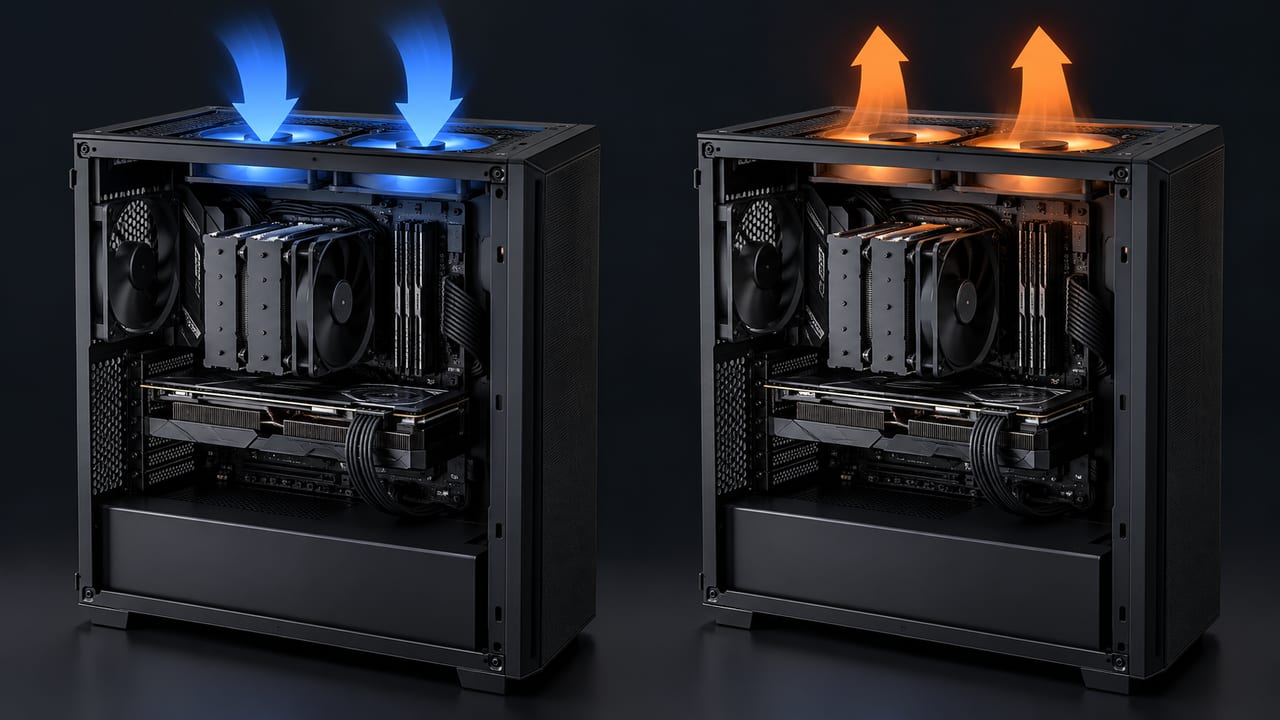
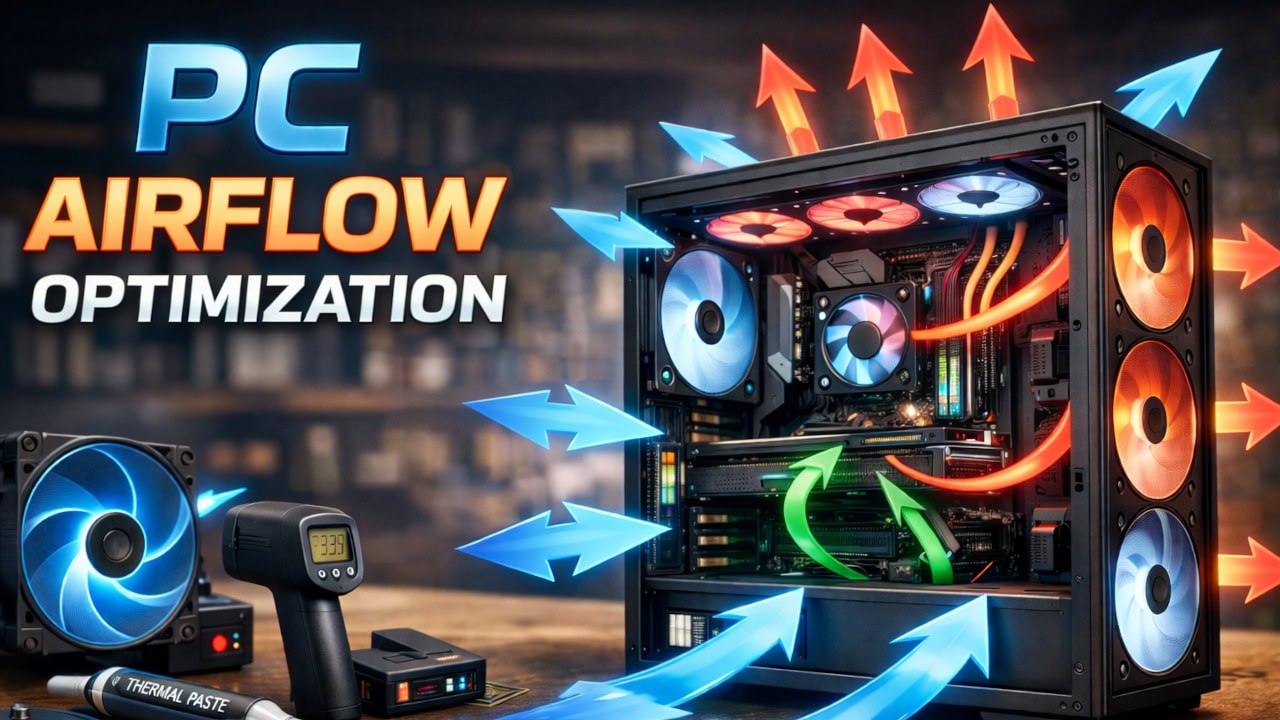
Start by clearing blocked vents and checking that fans work. On a desktop, our fan placement guide helps keep cool air moving through the case. If the fans stay slow while temperatures climb, set a steeper fan speed curve.
To test a new fan layout before you buy fans, try our 3D airflow simulator. One case is free to try, and Computer Info Bits Pro opens the rest.
Fix a Sudden Drop After the Basic Checks
Open Task Manager with Ctrl+Shift+Esc and look for other apps using a lot of CPU or memory while the game runs. Close only apps you recognize and do not need. Then update the game and install a graphics driver from your GPU or laptop maker. Intel includes background apps and updates in its low-FPS checks. If the drop began right after an update, compare the same test before changing several more settings.
If you use integrated Intel graphics, check whether the memory is running in dual-channel mode. Intel recommends dual-channel memory for better integrated graphics performance. Our RAM configuration optimizer checks whether your sticks run in dual channel. For a dedicated GPU, memory setup is one possible factor, but verify the cap, GPU choice, power, and temperatures first.
Still below a fair comparison? Save your test settings and results. Run another game or a repeatable GPU benchmark to see whether the gap follows the whole PC. If every check passes, your parts may simply fall short of your target. The upgrade checker shows which part to replace first and whether it fits.
Related Posts