PC Airflow Optimization: Best Fan Placement Guide
By Marlo Strydom · Last updated



Better airflow is not about filling every fan mount. It is about giving room air one clear path past the graphics card and CPU cooler, then out of the case. For a standard tower, the safest default is front or side intake with rear exhaust. Add a rear-top exhaust only when testing shows it helps. Noctua's case airflow guide recommends this front-to-back pattern while noting that no layout fits every case.
Not sure your fans are set up right? Our 3D airflow simulator runs your layout in a model case and shows you where the air goes.
What Each Fan Mount Should Do
| Fan mount | Set it to |
|---|---|
| Front or side | Intake, behind a dust filter |
| Rear | Exhaust |
| Top, closest to the back | Exhaust |
| Top, closest to the front | Intake, only to feed a tower CPU cooler |
| Bottom | Intake |
| Radiator | Front intake for a cooler CPU, or top exhaust for a cooler graphics card |
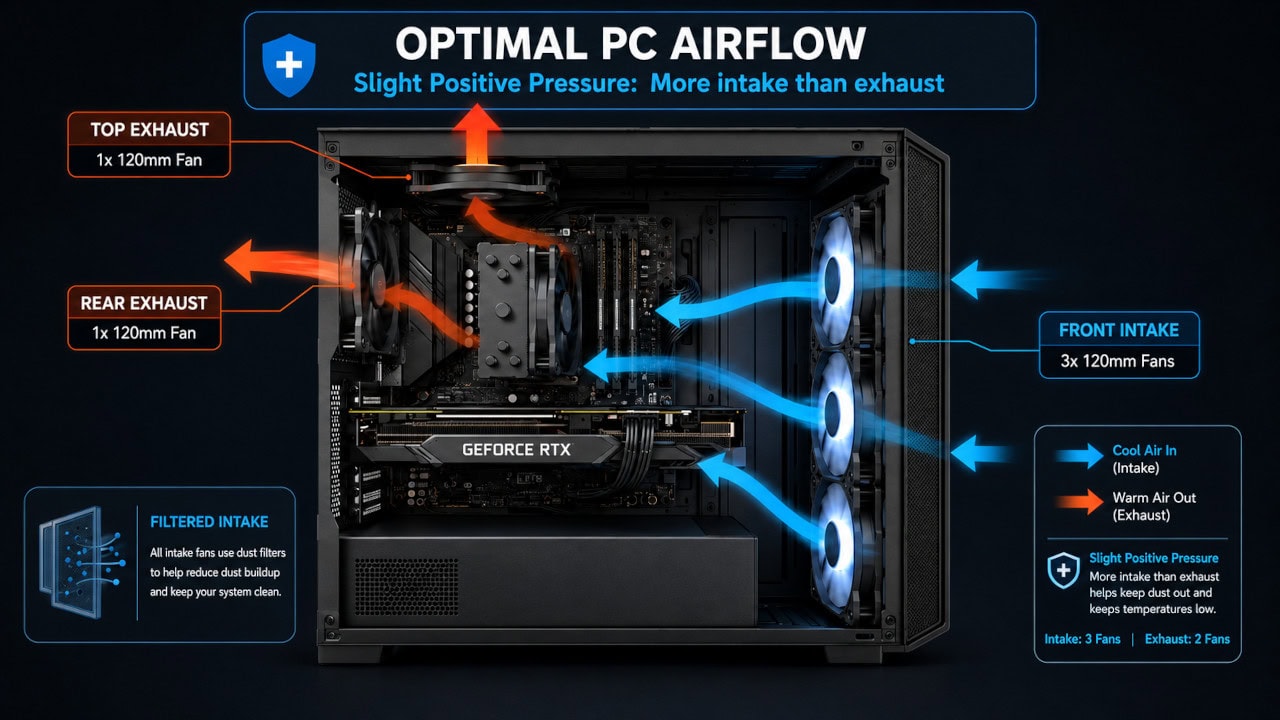
With five fans, that gives Noctua's baseline setup: three front intakes, one rear exhaust, and one top exhaust. Already set up? Jump to checking fan direction, quieting loud fans, or adding more fans.
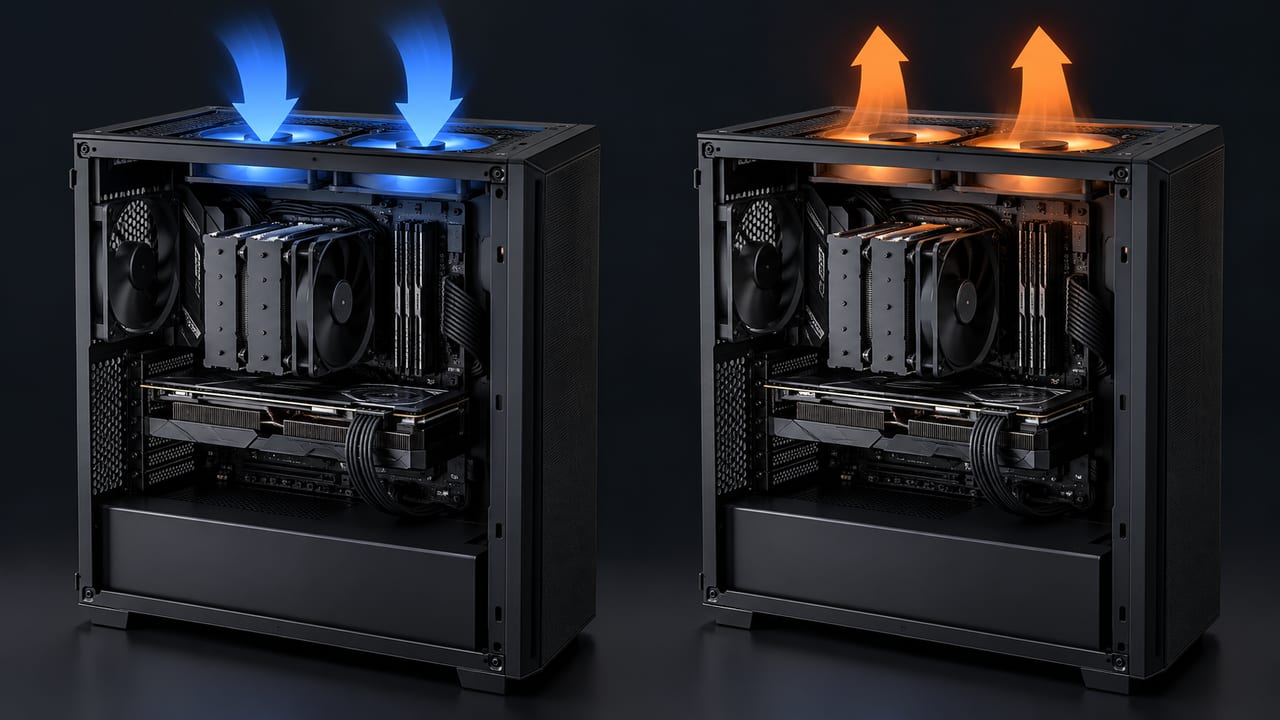
PC Airflow Diagram
Blue arrows show cool air coming in through the front fans and crossing the graphics card and CPU cooler. Orange arrows show warm air leaving through the rear and top fans.
Fan Layouts for 2 to 6 Fans
Find your fan count below. Each row adds one fan to the row above it, in the order Noctua recommends for a case that moves air from front to back, past the main parts of a computer. A case that ships with two fans, like the Corsair 4000D Airflow, starts at the top row.
| Fans | Where they go |
|---|---|
| 2 | 1 front intake, 1 rear exhaust |
| 3 | 2 front intakes, 1 rear exhaust |
| 4 | 3 front intakes, 1 rear exhaust |
| 5 | 3 front intakes, 1 rear exhaust, 1 top exhaust at the back |
| 6 | The 5-fan layout plus 1 intake in the front-most top or bottom mount |
The roof is where most mix-ups happen. Our guide on top fan direction covers the one spot where an intake helps. For the bottom option in row 6, our NZXT H5 Flow guide shows what two floor intakes changed in our model.
Cases with intake mounts on the side, like the Lian Li O11 Dynamic or the Fractal North, follow the same table, since Noctua's guide treats side intakes like front intakes. A solid front panel lets in less air than a mesh front, as Noctua's airflow basics explain.
Tower Cooler Direction
Mount a tower CPU cooler so it blows toward the rear exhaust fan. That is Noctua's standard orientation for its tower coolers, and it lines up with the front-to-back path. Check the cooler and motherboard manuals first, since socket layout and clearance vary.
Where the Radiator Goes
Noctua recommends a front or side radiator with intake fans for the lowest CPU temperatures, or a top radiator with exhaust fans for the lowest graphics card temperatures. Pair a front radiator with rear and top exhaust fans. Pair a top radiator with front intakes so it gets fresh air.
How to Test PC Airflow
Test a Layout Before You Build
You can judge a case's cooling plan before you buy or move a single fan.
Check Each Fan's Direction
On Noctua fans, air blows out of the side with the round hub sticker, so an intake fan's sticker faces into the case. Many other fans show small arrows on the frame for airflow and spin direction.
To check with the PC running, hold a thin strip of tissue just outside a vent. If it gets pulled in, that fan is an intake, and if it blows away, it is an exhaust. Keep the tissue outside the case so it cannot touch a fan.
Intel also suggests watching incense smoke near a vent, but it warns about ash and embers. The tissue gives the same answer without a flame near your PC.
Compare Temperatures Before and After
The clearest sign of a cooling problem is thermal throttling, when the CPU slows itself down at its heat limit. Intel explains this protection and advises checking the limit for your exact processor.
Still planning the build? Our cooling calculator checks whether your fans and CPU cooler can keep up with your parts before you buy anything.
Log CPU and GPU temperature, clock speed, and fan speed with HWiNFO or our free PC Reporter. Keep the room temperature, the workload, and the closed side panel the same for every run.
- Run your usual game or task and save the readings.
- Change one fan's position, direction, or speed curve.
- Run the same task for the same length of time.
- Keep the change only if temperature, clock speed, or noise improves.
If temperatures and clock speeds stay steady but games still run slow, heat isn't the cause. Check whether your processor is holding back your graphics card with our bottleneck calculator.
More Intake or More Exhaust?
The balance between air coming in and air going out is called case pressure. Noctua describes three setups:
| Setup | Air balance | Trade-off |
|---|---|---|
| Positive | More air pulled in than pushed out | Less dust slips in through gaps, but warm air can build up |
| Neutral | About the same in and out | A middle ground with steady fresh air and less dust |
| Negative | More air pushed out than pulled in | Warm air leaves fast, but dust gets pulled in through unfiltered gaps |
Intel recommends a balanced setup that leans slightly toward intake to limit dust buildup. More or faster intake fans push the balance positive. Our PC airflow calculator compares your intake and exhaust totals.
Quiet Fans That Run Too Loud
Fans that roar during light use often follow the default speed curve. Noctua's fan settings guide warns that default curves can run fans too fast at low temperatures.
Open your BIOS or UEFI and find the fan settings. Set 4-pin fans to PWM mode instead of Auto, then lower the low-temperature points until everyday use is quiet.
Fans that speed up during games are normal, but rattling or buzzing is not. Loose cables and fans that blow head-on into each other cause that kind of noise, so tidy the cables and keep every fan on the same path. Several slower fans also move as much air as a few fast ones while staying quieter.
Connect Extra Fans
Each fan plugs into a fan header on the motherboard. To run more fans than you have headers, use a splitter cable or a fan hub that shares one header.
Noctua's rule is to add up the maximum current of every fan on one header and keep the total below that header's limit. Most motherboard headers allow up to 1A, and your manual lists the exact figure. A hub powered by a SATA cable can run more fans than one header can power alone.
Free Fixes Before You Buy More Fans
- Clean out the dust: Dust buildup can block airflow. Shut down and unplug the PC, then hold each fan still while you use compressed air so it cannot overspin.
- Check filters every few months: Clean them sooner if the room is dusty.
- Route cables away from fans: Tuck loose cables behind the motherboard tray so nothing touches a blade.
- Give the vents space: Keep the front, top, and bottom openings clear of walls and clutter.
Related Posts