Parts of a Computer and Their Functions (With Diagram)
By Marlo Strydom · Last updated
Every computer, from a school laptop to a gaming tower, runs on the same small team of parts. One does the thinking, one holds what you have open, one keeps your files, and one puts the picture on your screen. Once you know who does what, slow PCs, upgrade choices, and the rest of our computer guides and tutorials all make a lot more sense.
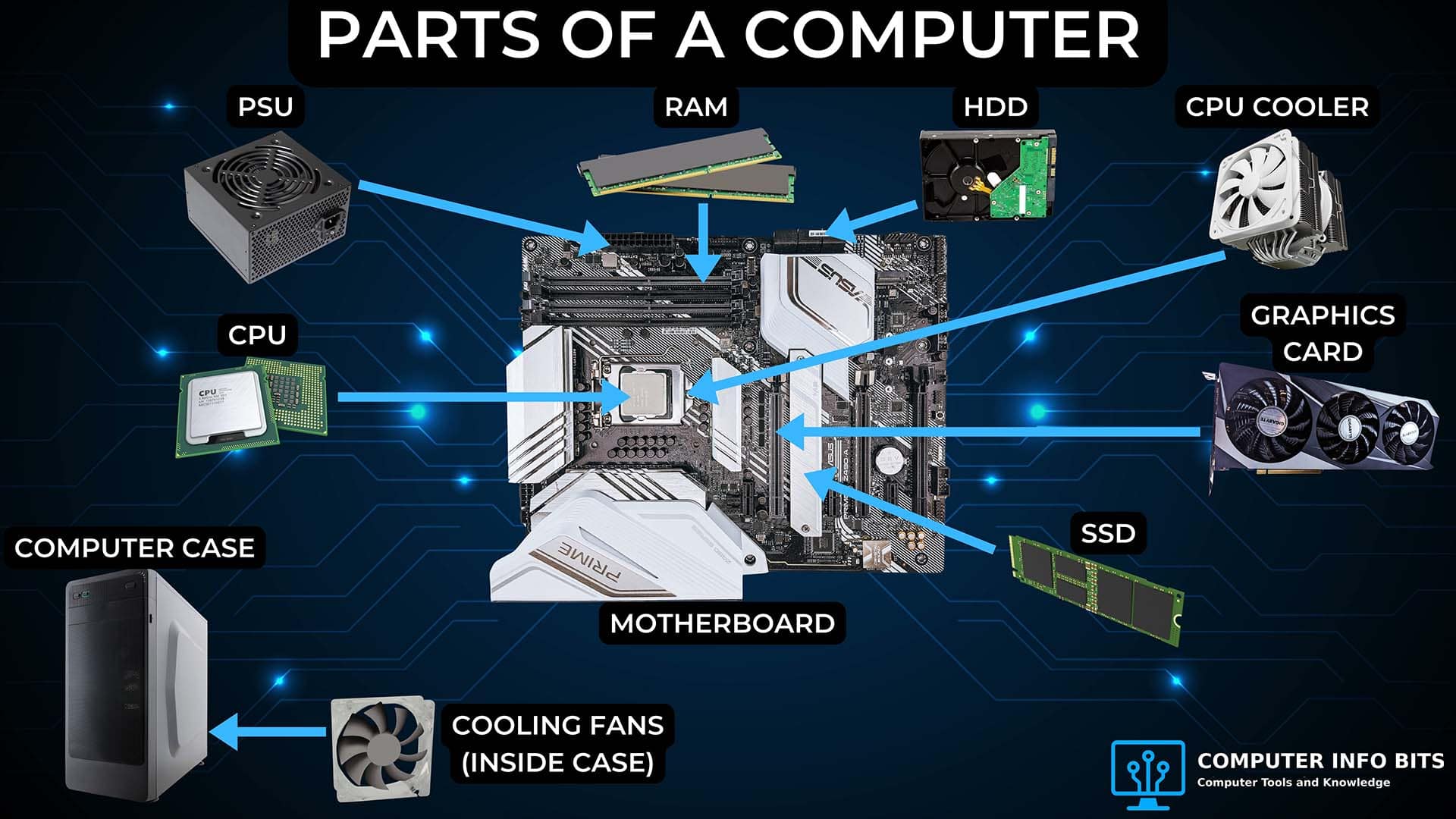
1. CPU (Central Processing Unit)
The CPU, or central processing unit, is the brain of the computer. Every time you click a button, open a file, or load a webpage, it carries out the instructions behind that action, working through billions of steps every second.
A part inside it called the arithmetic logic unit (ALU) does the math and the yes or no decisions that software needs. Modern CPUs from Intel and AMD have several cores, so they can work on more than one task at the same time.
The CPU affects how fast the PC feels and how many apps you can run at once. It also works as a team with the graphics card, so a weak CPU can hold back a strong GPU and cause a performance bottleneck.
2. Motherboard
The motherboard is the main circuit board inside your computer. Every other part either plugs into it or connects to it, and its job is to hold those parts together and move data and power between them. It also stores the BIOS or UEFI firmware that starts the computer before the operating system loads.
- CPU socket: Holds the processor.
- RAM slots: Hold the memory sticks, and the slots you pick decide whether they run in dual channel.
- PCIe slots: Connect graphics cards, add-on cards, and some fast storage drives.
- Chipset: Controls which features and ports the board can use.
- I/O panel: The row of ports at the back for plugging in outside devices and networking.
3. Power Supply Unit (PSU)
The PSU, or power supply unit, changes the high-voltage power from your wall outlet into the lower-voltage power your PC parts can safely use. Cables from the PSU carry that power to the motherboard, CPU, graphics card, storage drives, and fans.
Built-in safety protections, like over-voltage and short-circuit protection, shut the power supply down when something goes wrong to help keep your parts safe. Because the PSU has to provide enough power for everything in the build at once, a PSU wattage calculator can help you work out how much power your parts need.
A PSU can't keep your PC running when the power goes out, though. A battery backup, called a UPS, gives you time to save and shut down, and our UPS sizing tool shows which size fits your build.
4. RAM (Random Access Memory)
RAM, or random access memory, is the fast short-term memory your computer uses for whatever you are doing right now. When you open a browser, start a game, or edit a document, the data in use is kept in RAM. The CPU can reach RAM far more quickly than a storage drive, which is why active work happens there.
RAM is volatile, which means everything in it is wiped when the computer turns off. The more RAM a computer has, the more it can keep open at once, and our RAM calculator shows how much your PC needs.
5. Storage: SSDs, HDDs, and Portable Drives
Storage is the long-term memory for your operating system, apps, games, photos, and documents. Unlike RAM, it keeps your data when the computer is turned off.
Hard Disk Drives (HDDs)
A hard disk drive stores files on spinning magnetic disks that a small read/write head moves across. Those moving parts make HDDs slower and easier to damage than SSDs, but they can hold a large amount of data, which makes them handy for backups and media libraries.
Solid State Drives (SSDs)
A solid-state drive stores files on flash memory chips and has no moving parts. It reads and writes data much faster than a hard drive, so Windows, apps, and games all load sooner. Our storage speed comparison tool puts real SSDs and hard drives side by side.
Portable Storage Devices
Portable storage devices let you move files from one computer to another. USB flash drives are handy for documents and installers, SD cards are common in cameras and laptops, and external hard drives or external SSDs are used for backups and large files.
6. GPU (Graphics Processing Unit)
The GPU, or graphics processing unit, draws everything you see on the screen, from desktop windows to videos and 3D games. A CPU works on a few tasks at a time, while a GPU can handle thousands of tasks at once, which is exactly what drawing an image needs.
- Dedicated graphics card: A separate card with its own video memory. Used for gaming, 3D work, and creative apps.
- Integrated graphics: Built into the processor. Uses less power and is fine for office work and watching videos.
- VRAM: The graphics card's own memory, used to hold textures and images while they are being drawn.
To see what a graphics card means for your games, the FPS calculator for gaming estimates the frame rate a PC can reach at your resolution and settings.
7. Input and Output Devices
Input Devices
Input devices send information and commands to the computer.
- Keyboard: Sends text and shortcut commands.
- Mouse or touchpad: Controls the pointer and what you click on.
- Microphone: Picks up voice and other audio.
- Webcam: Records video for calls, streaming, and recording.
- Scanner: Turns paper documents into digital files.
- Game controller or joystick: Gives you smooth control for games and simulators.
Output Devices
Output devices show or play results back to you.
- Monitor: The main output device, showing your desktop, apps, videos, and games. There are different types of monitors, such as IPS, VA, and OLED panels.
- Speakers or headphones: Play sound from the sound card or built-in audio.
- Printer: Makes paper copies of text and images.
- Projector: Shows the screen image on a large surface.
8. Computer Case
The computer case holds all the parts together in one place and protects them from dust, knocks, and bumps. It also guides air through the system to keep parts cool, holds the storage drives, gives you places to mount fans, and provides the front buttons and ports you use every day.
- Cable routing: Channels behind the motherboard tray keep cables tidy and out of the way of airflow.
- Dust filters: Mesh filters over the air intakes stop dust from building up inside.
- Fan mounts: Cases differ in where fans can go. The Corsair 4000D Airflow takes them at the front, top, and rear, while the NZXT H5 Flow adds two on the bottom and the Lian Li O11 adds a row on the side. You can place fans in all three in our 3D airflow simulator.
9. Cooling and Airflow
Cooling matters because the CPU and GPU make a lot of heat when they work hard. If a chip gets too hot, it slows itself down to cool off, which is called thermal throttling. If that isn't enough, it shuts down to prevent damage.
Most systems use air cooling. A heatsink sits on top of the processor, the heat spreads into its metal fins, and a fan blows air across them to carry the heat away.
Case fans then pull cool air in and push warm air out. Liquid cooling does the same job using a pump, liquid coolant, and a radiator to move heat away from the hottest parts.
- Stock cooler: The basic cooler that comes included with some processors.
- Tower air cooler: A larger add-on heatsink with one or two fans.
- AIO liquid cooler: A sealed liquid cooler with a pump and a radiator.
- Thermal paste: Fills the tiny gaps between the CPU and the cooler so heat passes across more easily.
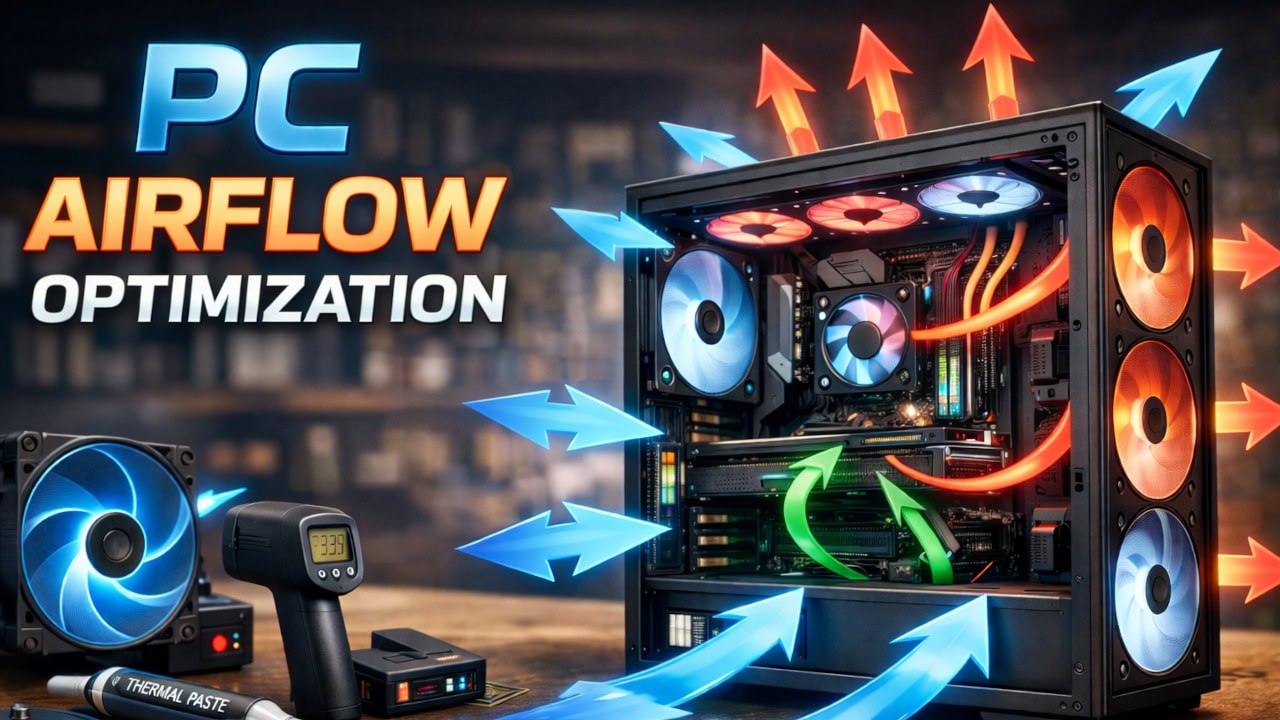
Good fan placement is the best way to stop heat from building up. Balanced airflow in and out keeps temperatures down and helps stop dust from getting in through the gaps in the case.
Not sure your fans are balanced? The PC airflow calculator checks whether more air is going in than coming out, and our guide to top case fan direction settles which way those fans should blow.
10. Connectivity, Ports, and Networking
Today's computers use wired and wireless connections to get on the internet, share files, connect other devices, and send video to displays. Some ports are built into the motherboard, while others come from the case, graphics card, add-on cards, or external adapters.
Wired Connections
Ethernet uses a network cable with an RJ-45 plug to connect a computer directly to a router, modem, or network switch. A wired connection is usually faster and more reliable than Wi-Fi, which makes it the better choice for gaming, large file transfers, and stable video calls.
If several people share the same connection, an internet speed requirements calculator can help estimate how much bandwidth the household actually needs.
Wireless Connections
Wi-Fi connects laptops and desktops to a wireless router without cables. Bluetooth is used for short-range devices such as keyboards, mice, headphones, speakers, and controllers.
Common Ports and Connectors
- USB: Common port for devices, storage, charging, and accessories.
- USB-C: A connector that plugs in either way. Used for data, charging, displays, and docks, depending on what the device supports.
- HDMI: Carries video and audio to monitors and TVs.
- DisplayPort: Common on graphics cards and high-refresh-rate monitors.
- Audio jacks: 3.5mm ports for microphones, headphones, speakers, and line-in devices.
How Many Parts Does a Computer Have?
There is no fixed number, because the count changes with the design and whatever is plugged in. The ten sections above are categories, and one category, like storage or cooling, can hold several physical items.
Internal and External Parts
The simplest way to sort them is by where they sit, the same split IBM's computer hardware overview uses. Internal parts live inside the case, while external parts plug in from outside and are often called peripherals.
- Internal parts: The CPU, motherboard, RAM, storage drives, graphics card, power supply, and coolers.
- External parts: The monitor, keyboard, mouse, speakers, printer, webcam, and anything else that connects through the ports.
Parts of a Computer System
A computer system is the complete setup, not just one box. It is the system unit, meaning the case and every part inside it, plus the peripherals plugged into it and the software that runs on it.
In classrooms, the whole tower often gets called the CPU. Strictly speaking, the CPU is the small chip covered first, and the tower is the system unit.
Parts of a Desktop Computer vs a Laptop
Desktops and laptops use nearly all the same parts and do the same jobs, but they arrange those parts differently. Intel's laptop and desktop comparison explains how their physical designs affect portability, cooling, connections, repairs, and upgrades.
| Feature | Desktop Computer | Laptop Computer |
|---|---|---|
| Main layout | Internal parts sit in a separate case. | Internal parts fit inside one compact body. |
| Display and controls | Usually uses a separate monitor, keyboard, and mouse. | Includes a screen, keyboard, and touchpad. External devices are optional. |
| Power | Uses an internal power supply and needs a wall outlet. | Uses a battery and a power adapter. |
| Cooling | The larger case has more room for fans, heatsinks, and airflow. | The smaller body has less room for cooling parts and airflow. |
| Upgrade options | Many parts use modular connections and can be replaced separately. | Options depend on the model. RAM or storage may be replaceable, while the CPU and GPU are often fixed to the board. |
| Repair access | The case usually opens to give direct access to individual parts. | Opening the body and reaching a part can require model-specific steps. |
| Portability | Usually stays in one place and depends on separate devices. | Combines the main devices and battery in a body made for travel. |
Once you know what each part does, our free PC tools help you put it to use, from checking whether a CPU and graphics card make a good pair to working out how much power a build needs.
Prefer to watch? Our summary video walks through these components.



Related Posts
PC Airflow Optimization: How to Cool Your Computer
Set up your case fans correctly to keep temperatures low and reduce dust buildup.
Why Is My FPS Lower Than It Should Be?
Find which part holds your games back, from the graphics card and processor to heat, power, and memory.
Parts of a CPU and Their Functions
The cores, cache, control unit, and ALU inside a processor, and what each one does.
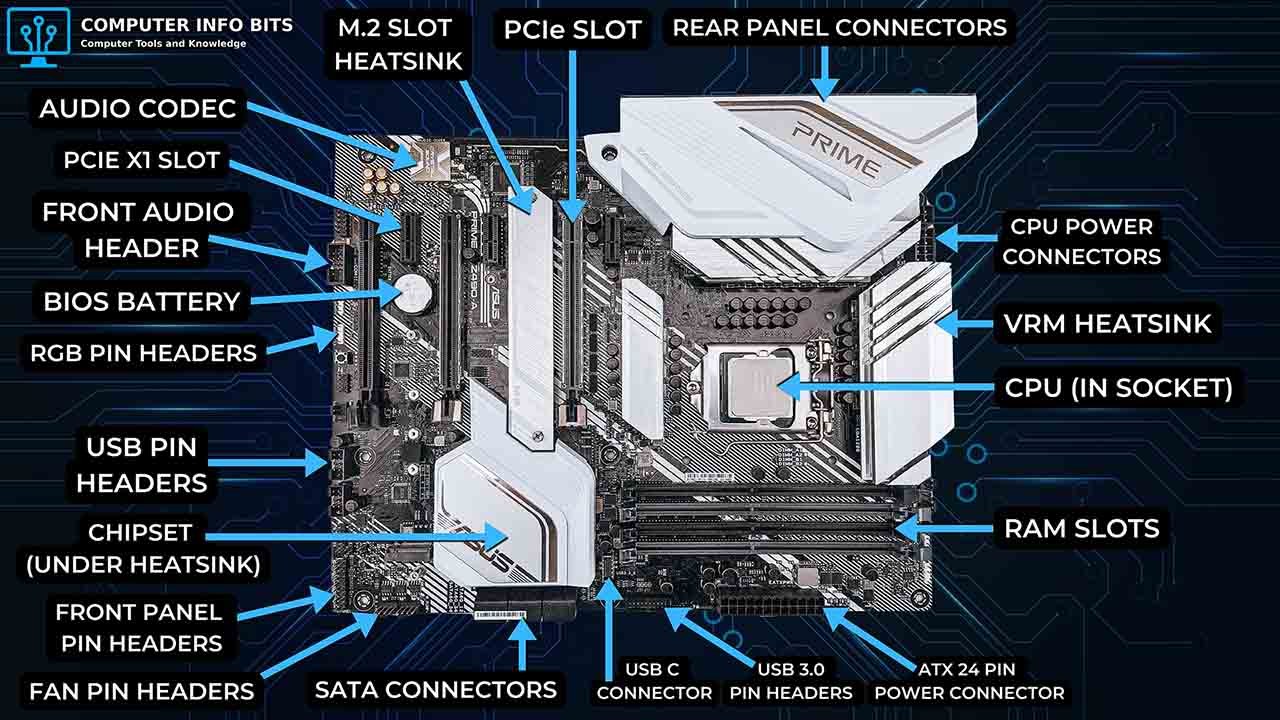
Parts of a Motherboard and Their Functions
The sockets, slots, headers, and connectors on a motherboard, and what plugs into each.