How Much Energy Do Gaming Computers Use?
By Marlo Strydom · Last updated



How much energy gaming computers use depends less on the parts list than on what the machine is doing at any moment. Gaming PCs have a reputation for being power hungry, and there is some truth to it: the same parts that push high frame rates pull a lot of electricity when they are working hard. But the gap between what a gaming PC draws while gaming and what it draws while you read email is bigger than most people expect, and that gap is where the real answer lives.
Across a year of normal use, an average gaming PC played a few hours a day costs somewhere around $60 to $200 in electricity, depending on your build and your local power price. The graphics card is responsible for most of that, and capping frame rates plus using sleep mode are the two changes that cut it the most.
Watts vs. kilowatt-hours: a watt is how much power a device pulls right now. A kilowatt-hour (kWh) is what your bill actually charges for: 1000 watts running for one hour. A 500W PC gaming for two hours uses 1 kWh. Everything below comes back to that one conversion.
1. What a Gaming PC Actually Draws
Power draw is not a single number; it moves constantly with what the machine is doing. A gaming PC spends most of its on-time far below its peak, which is why a build with a 750W power supply does not cost anywhere near as much to run as that number suggests.
| What you are doing | Typical whole-system draw | What is happening |
|---|---|---|
| Asleep / standby | 2-6W | Only enough to wake on a keypress |
| Idle on desktop | 50-100W | Parts are awake but barely working |
| Web, video, office work | 70-150W | Light, bursty load on the CPU |
| Gaming (mid-range build) | 300-450W | GPU and CPU both working hard |
| Gaming (high-end build) | 450-650W | A power-hungry GPU near full load |
| Stress test / full load | 500-800W+ | Every part maxed at once, rarely seen in real use |
Common mix-up: your power supply's rating is its maximum capacity, not its consumption. A 750W PSU does not pull 750W from the wall; it only delivers what the parts ask for, which under real gaming loads is usually 350-550W. Sizing a PSU is a separate question, and our PSU wattage calculator handles that side of things. That same real-world draw is also the figure you size a battery backup to, which is what our gaming PC UPS size calculator uses.
2. Where the Power Goes
Two parts dominate the bill. The graphics card is the single biggest draw in almost every gaming PC, and the processor is a distant second. Everything else combined, including the motherboard, memory, drives, fans, and lighting, is usually a small slice. If you understand those two big draws, you understand the whole picture, which is why it helps to know the parts of a computer and what each one does.
Rough power draw by component, under gaming load
- Graphics card (GPU): 75W on budget cards, up to 450W+ on top-tier models. The biggest variable by far.
- Processor (CPU): 45-65W for budget chips, 65-125W for gaming chips, up to 170W+ for high-end.
- Motherboard: 25-80W depending on the board and its features.
- Memory (RAM): around 3-6W per stick.
- Storage: 2-5W for an SSD, 6-9W for a spinning hard drive.
- Fans, pump, and RGB lighting: usually 10-30W all together.
- Monitor (separate from the PC): 20-60W, and more for large high-refresh or HDR panels.
Notice that the monitor is not powered by the PC; it plugs into the wall on its own, so its draw is on top of everything above. A large 4K display can quietly add as much to your bill as a mid-range processor. If you are planning a two-screen desk, weigh the benefits of dual monitors for gaming against the extra display power and desk space.
Yes, a little. A power supply is rated by how efficiently it turns wall power into usable power for your parts, shown by its 80 Plus rating. An 80 Plus Bronze unit running at roughly 85 percent efficiency wastes about 15 percent of what it draws as heat; an 80 Plus Gold unit at around 90 percent wastes about 10 percent. On a PC pulling 400W of usable power, that difference is roughly 25-30W drawn from the wall, or a few dollars a year for a typical gamer. It is real, but it is a small effect compared to the graphics card you choose and how many hours you play. The bigger reasons to buy a quality PSU are stability, quieter running, and a longer lifespan, with lower waste heat as a welcome bonus.
3. What It Costs to Run
To turn watts into money, you only need one piece of arithmetic: watts ÷ 1000 × hours = kWh, then multiply by your electricity price. Power prices vary widely, so the table below uses a representative rate of $0.17 per kWh (close to the US average); if your rate is higher, as it often is in the UK, Europe, and Australia, scale the numbers up.
The figures below are for gaming hours only, at 4 hours of play per day, and exclude the monitor and idle time so the comparison stays clean.
| Build type | Draw while gaming | Per hour | Per month | Per year |
|---|---|---|---|---|
| Entry-level | 250W | ~4 cents | ~$5 | ~$62 |
| Mid-range | 400W | ~7 cents | ~$8 | ~$99 |
| High-end | 550W | ~9 cents | ~$11 | ~$137 |
| Extreme | 750W | ~13 cents | ~$16 | ~$186 |
Add idle time and the monitor and a realistic all-in figure for most gamers lands somewhere between $80 and $250 a year. To put that in context, four hours of gaming a day on a mid-range PC costs about the same as running a typical refrigerator for a year. It is a real cost, but it is rarely the budget-breaker people imagine.
Worked example: a mid-range PC drawing 400W gaming for 4 hours is 400 ÷ 1000 × 4 = 1.6 kWh per day. Over a 30-day month that is 48 kWh, and at $0.17 per kWh that is about $8.16. Swap in your own wattage, hours, and rate and the same three steps give you a personal answer.
4. How to Measure Your Own PC
Estimates are fine for planning, but if you want the real number for your exact machine, there are two reliable ways to get it.
- A plug-in power meter: a wall-socket meter such as a Kill A Watt sits between the outlet and your PC and shows the true draw from the wall, including PSU losses. This is the most accurate method and also catches the monitor if you plug it into the same meter.
- Software monitoring: tools like HWiNFO report the power being used by the CPU and GPU in real time. This will not capture the whole system or wall losses, but it is free and shows you exactly which part spikes during a game.
Watch the reading at idle, during a typical game, and during a demanding one. The spread between those three numbers tells you more about your real running cost than any single peak figure, because you spend very little time at the peak.
5. How to Use Less Energy Without Hurting Performance
Most of these cost nothing and barely affect how your games feel. A few of them even make the machine quieter and cooler at the same time.
Cap Your Frame Rate
This is the single most effective change. An uncapped game will happily render 300 frames per second on a menu screen, running the GPU flat out for no benefit. Capping frames to match your monitor, or to a sensible target, can cut GPU power dramatically while looking identical. Our guide on what frame rate you actually need helps you pick a target that matches your display instead of wasting power chasing numbers you cannot see.
Use Sleep Mode, Not Idle
Leaving a PC idling on the desktop overnight burns 50-100W for nothing. Sleep drops that to a few watts while keeping your session ready in seconds. Set the machine to sleep after 15-30 minutes of inactivity and you reclaim most of the wasted hours without ever shutting down.
Pick an Efficient Power Plan and Undervolt
Windows power settings let the CPU idle down properly when it is not needed; the Balanced plan is fine for most people. For the more adventurous, undervolting the GPU or CPU lowers power and heat while keeping nearly all the performance, and it often reduces fan noise too.
Keep It Cool and Clean
Heat and energy are linked. A dusty, hot machine runs its fans harder and is more likely to hit thermal throttling, where the chip slows itself to survive. Good airflow and a clean heatsink keep parts in their efficient range. If your PC is older and feels like it is working harder than it used to for the same tasks, our guide on why computers slow down with age covers the usual causes.
Right-size the build: the cheapest watt is the one you never needed. A graphics card matched to your monitor's resolution and refresh rate, rather than the most powerful one you can afford, is the biggest lever on long-term running cost. Since the GPU is also the part most worth checking when something goes wrong, it is worth knowing how to check a GPU is working properly.
6. How Gaming PCs Compare
Context helps. A gaming PC sits at the higher end of home electronics, but it is not in a class of its own.
- Games consoles: a PlayStation 5 or Xbox Series X draws roughly 150-220W while gaming, less than most gaming PCs because the hardware is fixed and tuned for a fixed target.
- Gaming laptops: typically 100-250W under load, lower than a desktop with the same name on the GPU because mobile parts are power-limited to protect battery and cooling.
- Office or laptop PCs: 20-100W, since they have no power-hungry graphics card to feed.
The takeaway is that the graphics card, more than the label "gaming PC," decides the energy story. A modest gaming build sips power; an enthusiast tower with a flagship card is the one that shows up on the bill.
Related Posts
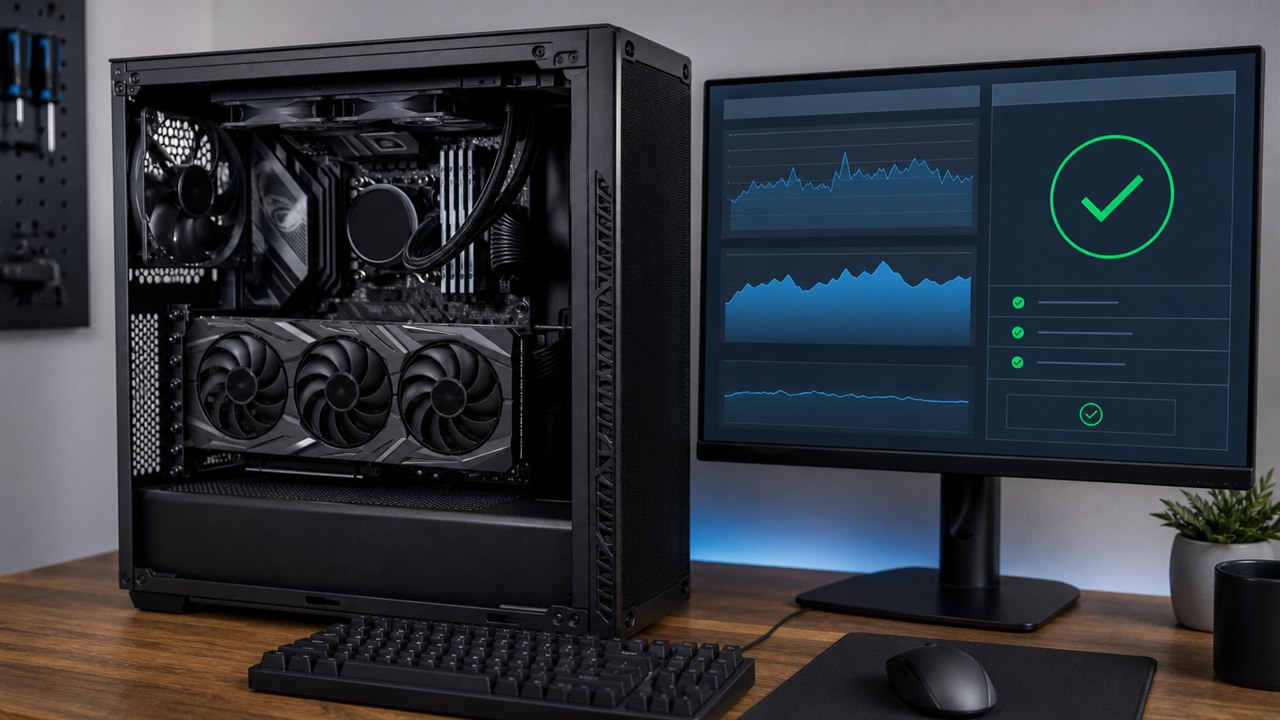
How to Check If a GPU Is Working Properly
Confirm the graphics card and its fans behave correctly under load before replacing the PC's largest power user.
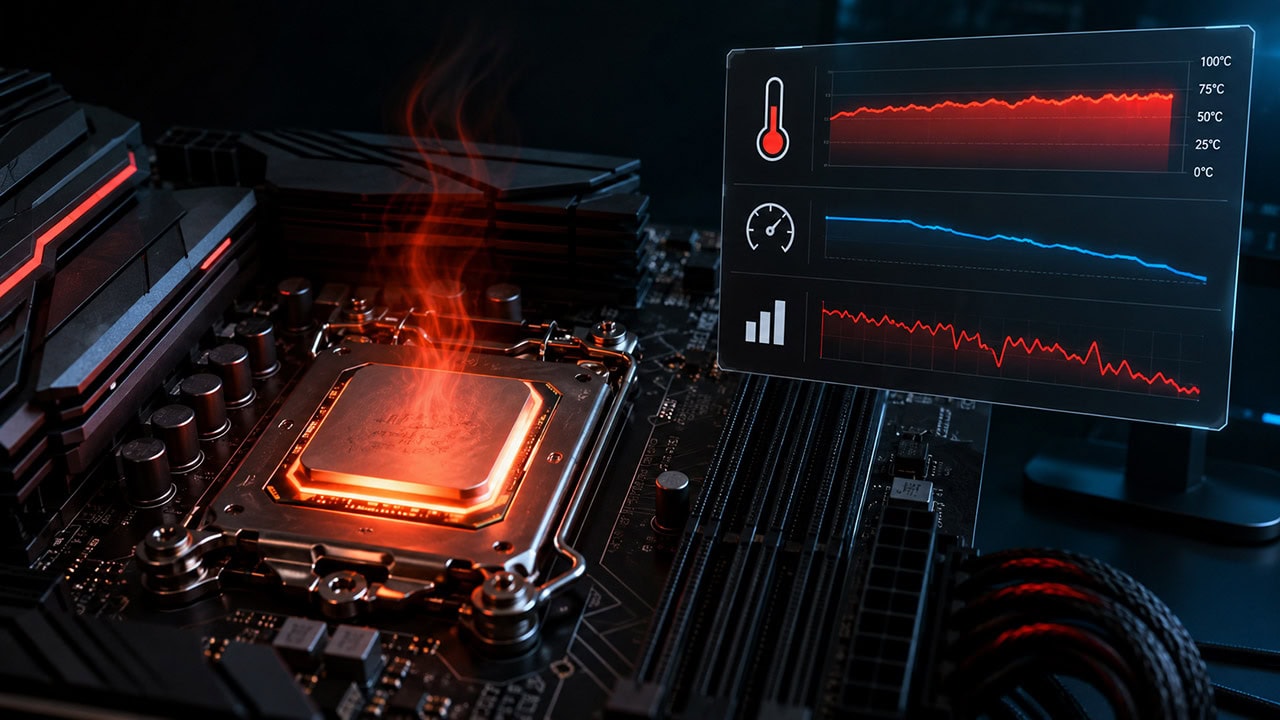
How to Know If Your CPU Is Thermal Throttling
Heat and energy are linked. Spot a CPU slowed by heat, confirm it with HWiNFO64, and learn the Intel and AMD limits.
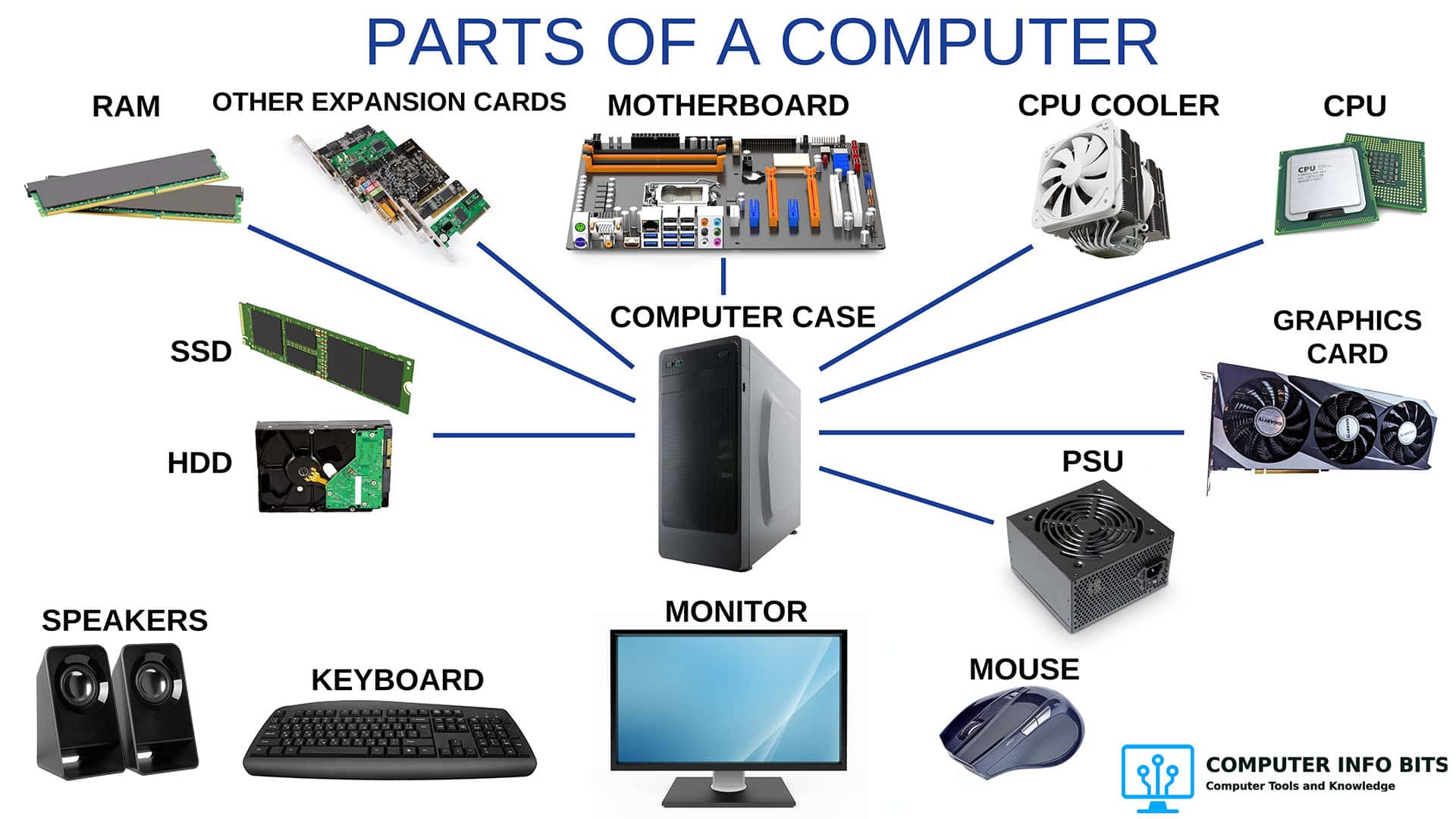
Parts of a Computer and Their Functions
A breakdown of every major PC component, including which ones draw the most power and why.