Things to Check When Buying a Used Computer
By Marlo Strydom · Last updated
Buying a used computer is far less risky than it feels, as long as you can tell a well-kept machine from one that is about to fail. Most of the risk comes down to a few things: hidden wear on the drive, parts that do not match the listing, and accounts or licenses that lock you out after you pay.
Whether you meet the seller or buy online, and whether it is a laptop or a desktop, the checks below take about twenty minutes and catch nearly all of it.
What You Can Check Depends on How You Buy
How you buy changes when you can check. Meet the seller and you inspect first, then pay. Buy online and you vet the seller and the listing first, then run the hands-on checks the day it arrives, while you can still send it back.
Both ways start with the seller questions below. From there, read buying online or buying in person for your situation, then finish with the hands-on checks that follow.
Questions to Ask the Seller Before You Buy
Half of a good purchase happens over messages, before you ever see the computer. The answers tell you what to inspect, and the seller's willingness to answer tells you who you are dealing with.
- Why are you selling it? "Upgrading" is normal. "It started acting up" or "needs a small fix" is a warning. Vague answers usually hide something.
- How old is it, and are you the original owner? Age sets your expectations for wear, and the original owner usually knows the real history.
- What are the exact specs? Ask for the CPU model, amount and type of RAM, the graphics card, and the storage. You will verify all of it later.
- Has anything been repaired or replaced? A new drive or fresh thermal paste is fine. A replaced motherboard or a board-level repair is a different risk.
- Can I see it powered on? If the answer is no, or the listing says "untested" or "for parts," treat it as broken and price it that way.
Ask for clear photos of the actual machine, not stock images. A photo of the sticker on the bottom of a laptop, or of the inside of a desktop, tells you more than the description does. If the seller will not send them, move on.
Buying a Used Computer Online
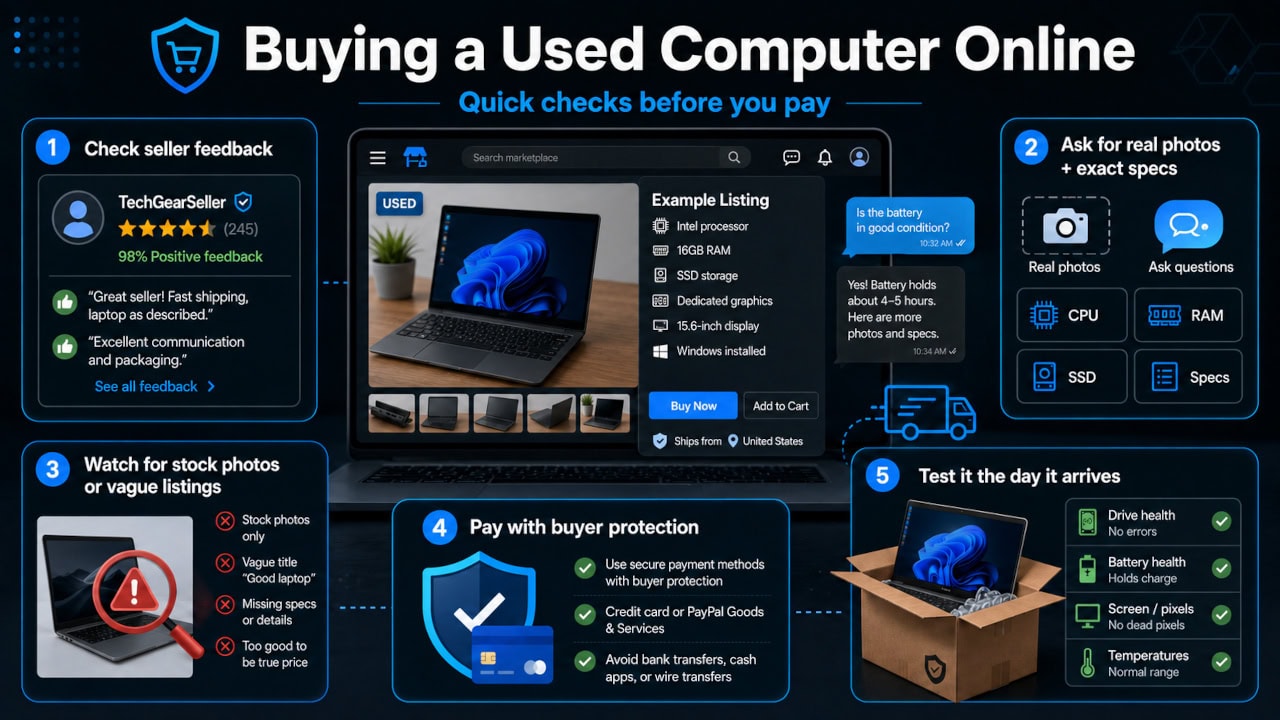
When you cannot stand over the machine, your protection shifts to the seller, the listing, and how you pay. Get those three right and a shipped used computer is just as safe a buy, because anything wrong on arrival can go straight back.
Check the seller before the computer
Look at the seller's feedback, not just the score but the recent comments and how long they have been selling. A 99% rating from thousands of sales is worth more than 100% from five. A brand-new account listing one pricey laptop is the oldest trick on any marketplace.
Know what "refurbished" really means
Used and refurbished are not the same thing. A refurbished machine has been tested and restored by the seller, often with a grade attached: Grade A is near-mint, Grade B has light cosmetic wear, and Grade C carries heavier marks for a lower price.
Those grades describe looks, not health, so the arrival checks still apply. Buying from a dedicated refurbisher such as Back Market, Amazon Renewed, or a manufacturer's own outlet usually comes with a warranty and a clear return policy that a private seller rarely matches.
Pay so you can get your money back
Use a payment method with buyer protection, like PayPal Goods and Services or a credit card. Never pay by bank transfer, wire, Zelle, or a cash app for a shipped item. That money is gone the moment it leaves, with no way to recover it if the box never turns up or arrives holding a brick.
Read the listing like an inspector
Online, the listing is all you have to go on, so the photos and questions above matter even more. A single blurry shot or a recycled stock image is a reason to keep scrolling, and a reverse image search on the listing pictures can catch a scammer who lifted them from somewhere else.
Test it the day it arrives
Treat the delivery as your inspection, and finish it before the return window closes. Run the full hardware checks further down this guide: drive health, the real specs, temperatures, and the part tests.
On a laptop, add the battery report and the screen and keyboard checks in the laptop section. On a desktop, open the case first to confirm nothing came loose in shipping. If anything fails, open the return straight away rather than waiting to see if it settles.
Buying in Person
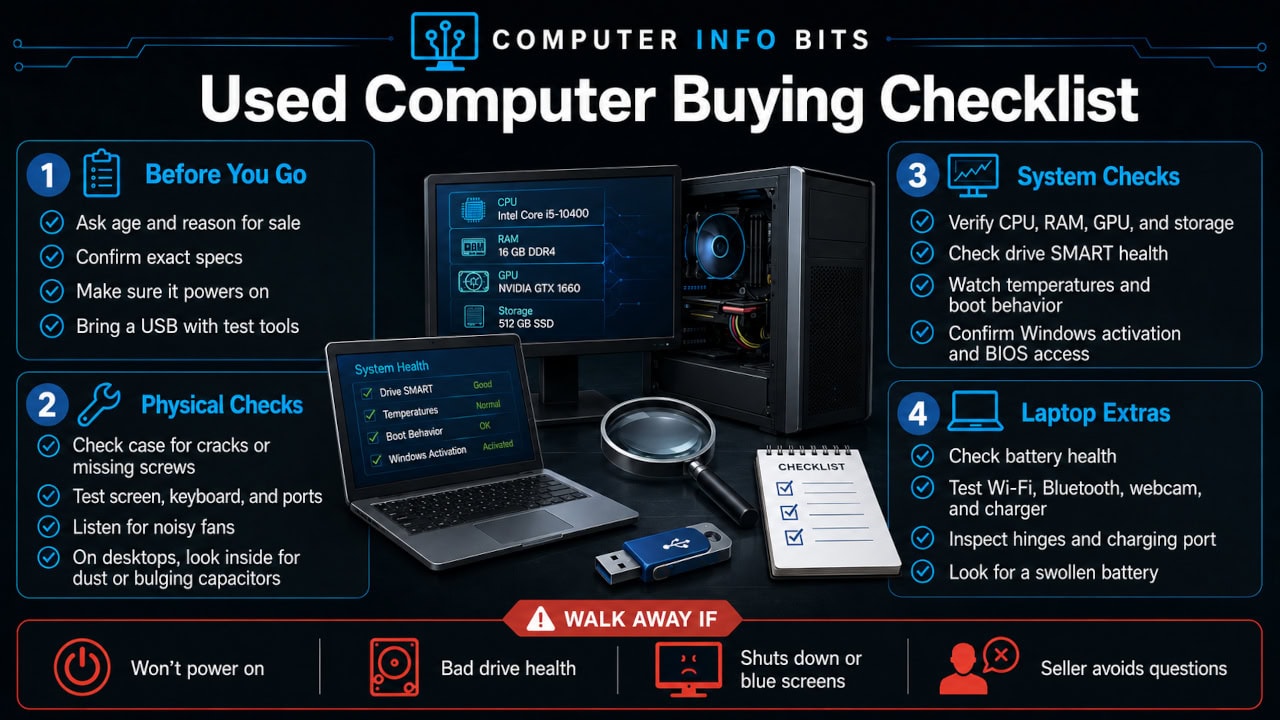
Take a USB stick loaded with three free tools: CrystalDiskInfo (drive health), CPU-Z (real specs), and HWiNFO (sensors). Run them on the seller's own power and screen, and never hand over cash until the machine has booted and passed the hands-on checks below.
The Physical Inspection
When you have the machine in front of you, spend the first minute just looking at it before you turn it on. The outside often reveals how the previous owner treated it.
Look for damage and signs of hard use
Check the case or chassis for deep cracks, missing screws, and bent metal. A few scuffs are normal. Drop damage, a flexed laptop lid, or a corner that no longer lines up points to abuse that may have shaken something loose inside.
On a laptop, press gently around the keyboard deck and palm rest. Creaking or flexing can mean the internal frame is cracked or screws are missing. Open and close the lid slowly to feel for a stiff or wobbly hinge, which is a common and expensive laptop failure.
Smell and feel for heat and moisture damage
A strong burnt smell, or a stale cigarette smell that coats the vents in sticky residue, both mean trouble. Smoke residue clogs fans and corrodes contacts over time. A musty smell can mean the machine sat somewhere damp.
Open a desktop and look inside
If it is a desktop and the seller allows it, take the side panel off; if it arrived by post, it is your machine now, so open it as a matter of course. This is the single most useful thirty seconds of the whole inspection.
- Dust: a light coat is normal. Thick, matted dust on the fans and heatsinks means the machine ran hot for a long time and was never cleaned.
- Capacitors: look at the small cylinders on the motherboard. They should be flat on top. Any that are bulging, leaking, or crusty mean the board is failing.
- Graphics card sag: a heavy card drooping in its slot is common, but check the slot bracket is not cracked.
- Liquid cooler: if there is an all-in-one cooler, ask its age. Pumps usually last five to seven years, and a dead one cooks the CPU.
While you are in there, it is worth knowing what each part does so you can match what you see against what the seller claimed. A listing that says "RTX graphics" next to an empty PCIe slot tells its own story.
Confirm the Real Specifications
Never trust the listing. Sellers make honest mistakes, and some are not honest at all. Verify every spec on the machine itself, because a "16GB" listing with one 8GB stick installed is something you only catch by looking.
The fast built-in checks
On Windows, the quickest overview is to right-click the Start button and open System, or press Windows + Pause. That confirms the processor, the installed RAM, and whether Windows is activated.
Open Task Manager with Ctrl + Shift + Esc, then the Performance tab. It shows the CPU model and speed, how many RAM slots are filled, the memory speed, the GPU, and the size and type of every drive. This one screen verifies most of the listing in seconds.
Confirm the details with CPU-Z
For the full picture, run CPU-Z (from your USB stick if you are at the seller's). It reports the exact CPU stepping, the real memory timings, and whether the RAM is running in dual channel. This is also how you confirm a graphics card is the model advertised and not a relabelled lesser card, which does happen on cheaper used listings.
If the seller will not let you install anything, you can still check most specs through the built-in System Information tool. Press Windows + R, type msinfo32, and press Enter. It lists the board, BIOS version, processor, and memory without installing software.
Check Drive Health and Hours
This is the check most buyers skip, and it is the one I care about most. The storage drive is the part most likely to be worn out, and it is the easiest worn part to hide. A computer that boots fine can still have a drive on its last legs.
Run CrystalDiskInfo. It reads the drive's own SMART data and reports a plain-English health status along with two numbers that matter: power-on hours and, for an SSD, total bytes written.
| Reading | What it tells you | When to worry |
|---|---|---|
| Health status | The drive's overall self-assessment | Anything other than "Good" is a hard no |
| Power-on hours | Roughly how long the drive has run | Over ~20,000 hours on a hard drive is well used |
| Reallocated sectors | Failed spots the drive has mapped out (HDD) | A rising or non-zero count means the drive is failing |
| Total host writes | How much data has been written (SSD) | Compare against the SSD's rated endurance |
Power-on hours also act as a lie detector. If the seller says the machine is "barely used, two years old" and the boot drive reads 25,000 hours, that is more than five years of constant running.
A worn drive is not always a dealbreaker, because a fresh SSD is cheap and easy to fit. Just price it in, and remember that a slow old drive is one of the main reasons older machines feel sluggish in the first place.
Test the CPU, GPU, and RAM
Once the specs and the drive check out, confirm the core parts actually do their job under a bit of load. You will not run a two-hour stress test during a quick meetup, or in the first hour after a delivery arrives, but a few minutes is enough to catch the obvious faults.
Watch the boot and the BIOS
A clean boot tells you a lot. The machine should power on without repeated beeping, post to the maker's logo, and reach the desktop without a long pause or error. Listen for fans that scream at full speed or grind, both of which mean a worn bearing.
It is worth tapping into the BIOS during boot (usually Delete or F2) to confirm the installed RAM and drives are all detected there. If the BIOS does not even list a part the seller promised, that part is faulty or missing.
Check temperatures and the CPU
Open HWiNFO and look at the idle temperatures. A CPU sitting at 70°C (158°F) doing nothing is a sign of dried thermal paste or a clogged cooler. Then open a few programs and a browser with several tabs to put the system under light load and watch the temperature climb.
A machine that overheats the moment it is asked to work is one that will throttle and slow itself down constantly. If you want to be thorough at home afterwards, our full guide on how to check if a CPU is working properly walks through the proper stress tests.
Test the graphics card
For any machine bought for gaming or creative work, the graphics card is the most expensive part and the one most likely to have been run hard by mining or heavy gaming. Confirm the display output works on every port, then watch for artifacts: flickering, coloured dots, or strange patterns on screen are signs of a dying GPU.
Run something graphically demanding for a few minutes if you can. Our guide to checking if a GPU is working properly covers the tools that show GPU temperature and memory errors clearly.
Confirm the RAM is all there and stable
Make sure the full amount of memory shows up, and that it runs in dual channel if there are two sticks, since that affects real performance. If the system has been crashing, the Windows Memory Diagnostic (search "Windows Memory Diagnostic" in the Start menu) gives a quick pass. Random freezes on an otherwise healthy machine sometimes just need the RAM contacts cleaned, which is an easy fix once you own it.
Extra Checks for a Used Laptop
Laptops carry a few risks a desktop does not, because the parts that wear out most are built in and costly to replace. Run these checks on top of everything above.
- Battery health: this is the big one. On Windows, open Command Prompt and run
powercfg /batteryreport, then open the saved HTML file. Compare "design capacity" to "full charge capacity." If the battery only holds 70% of its original capacity, it is near the end of its life. - Screen: display a plain white image, then a plain black one, to spot dead or stuck pixels, backlight bleed, and faint pressure marks. Check the brightness goes high enough to use.
- Keyboard and trackpad: open a text box and press every key. Click and drag across the whole trackpad. Sticky or dead keys are common on used laptops.
- Ports and webcam: test every USB port, the headphone jack, the card reader, and the camera. A dead port often hints at past liquid damage.
- Wi-Fi and Bluetooth: connect to a network and pair a Bluetooth device. A laptop that drops Wi-Fi or cannot see Bluetooth devices may have a failing wireless card or a disconnected antenna.
- Charging: confirm it charges from the original adapter, and that the barrel or USB-C port is not loose. A wobbly charging port is a frequent and awkward repair, and a cheap third-party charger can under-supply or damage the machine, so make sure the genuine adapter is included.
On a laptop, a swollen battery is a safety issue, not just a wear issue. If the trackpad bulges upward, the case does not sit flat, or the bottom panel is bowed, the battery is swelling and the laptop should not be charged until it is replaced. Walk away unless the price reflects a battery swap.
Software, Licenses, and Account Locks
A working machine you cannot fully use is still a bad buy. These software checks catch the locks that turn a bargain into a brick.
- Windows activation: in System settings, confirm Windows is activated. A "not activated" status means you may need to buy a license.
- Reset the machine in front of you: the safest handover is a clean reinstall of Windows. It removes the seller's accounts and data and confirms the machine boots cleanly from scratch.
- Account locks: on a laptop, this is critical. A device tied to the seller's account can be locked remotely. Make sure they sign out of their Microsoft account and remove the device, and on any Apple hardware confirm Activation Lock and Find My are switched off before you pay.
- Firmware or BIOS password: reboot into the BIOS to confirm it is not locked with a password the seller does not have. A BIOS password the seller cannot clear can make the machine unusable.
Warranty, Support, and Future-Proofing
A used machine that still has cover, and still gets updates, is worth more than one that does not. These two checks take a minute and can save you from a dead end later.
Find the serial number (on the chassis, or under the battery report and in System Information) and enter it on the maker's support site. Many laptops carry a one to three year warranty that transfers to you, which is real protection on the expensive parts. The same lookup also tells you when the model was released, which is a useful sanity check against the seller's age claim.
Then ask the harder question: will it still be supported for the life you need from it? With Windows 10 having reached the end of free support in October 2025, a machine that cannot move to Windows 11 is on borrowed time.
Windows 11 needs TPM 2.0 and Secure Boot, and the processor has to be on Microsoft's supported list. In practice that means roughly an 8th-generation Intel Core or an AMD Ryzen 2000 series chip or newer. Anything older is a dead end for daily use, so confirm the CPU model and check the BIOS for those features before you buy.
The quickest way to know is to run Microsoft's free PC Health Check app, which states plainly whether the machine meets the Windows 11 requirements. If it does not, the computer is still fine for light or offline use, but treat it as a short-term buy and price it accordingly.
Red Flags: When to Walk Away
- The seller will not let you power it on, or only sends stock photos. Untested means broken until proven otherwise.
- The price is far below everything similar. A genuine bargain is rare. A price that is too good usually pays for a hidden fault or stolen goods.
- Bulging capacitors or a swollen battery. Both mean a failing part and a real cost ahead.
- Power-on hours that contradict the story. If the drive's age does not match the seller's claim, assume the rest of the claims are shaky too.
- It will not stay on, shuts off under load, or blue screens during your checks. Intermittent faults are the hardest and most expensive to chase down.
- No proof of ownership. For anything more than a token price, ask for the original receipt or box. It protects you against buying stolen hardware.
- A push to pay off-platform. Online, a seller who steers you away from the marketplace's own checkout toward an untraceable payment is steering you somewhere you have no protection. Walk away.
Working Out a Fair Price
A used computer is worth what its parts are worth today, minus their age and wear, not what it cost new. The fastest way to sanity-check a price is to search completed listings for the same model and see what they actually sold for, not what hopeful sellers are asking.
Then adjust for what your checks found. A worn drive, a tired battery, or a cooler due for new paste are all real costs you will pay soon, so subtract them from your offer. There is nothing wrong with pointing to a specific finding and asking for a lower price.
It also helps to think about the machine as a starting point rather than a finished article. If you plan to add memory or a new drive, our PC upgrade path planner shows what is worth upgrading, and the system requirements checker tells you whether the machine will run the software you actually need before you commit.
Buy on evidence rather than the seller's story, and a used computer is one of the best-value purchases in tech.



Related Posts
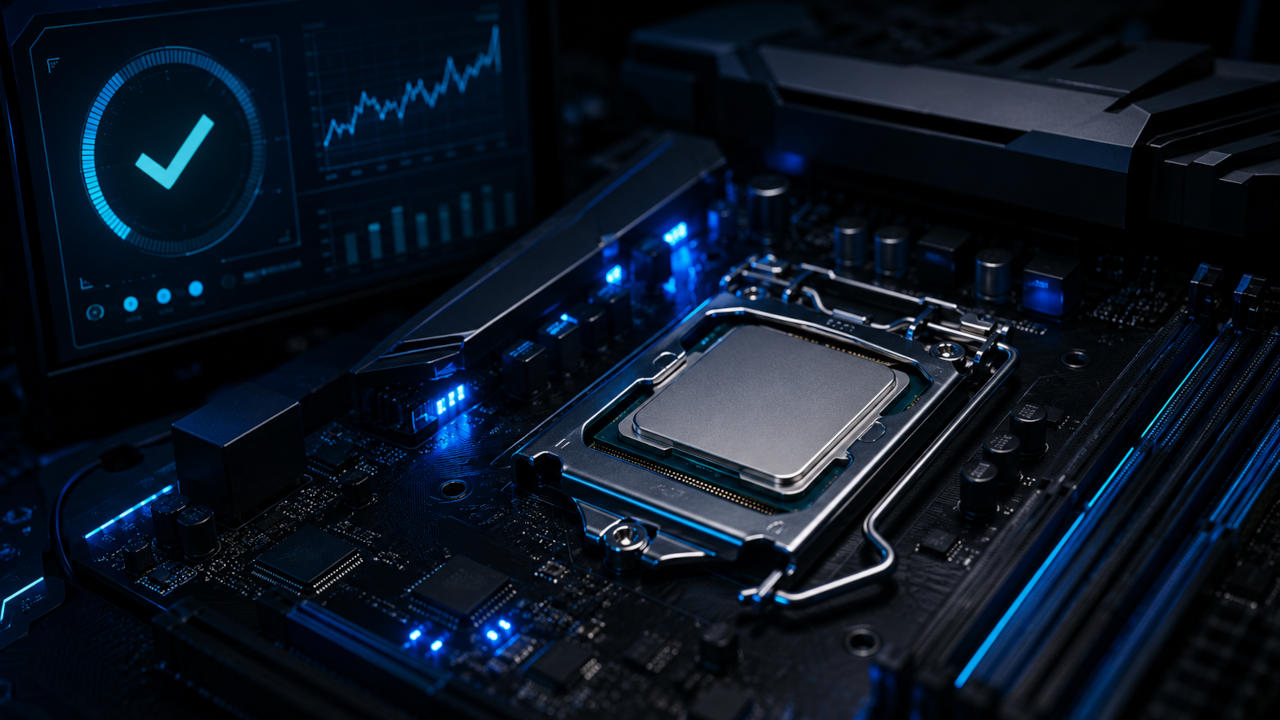
How to Check If a CPU Is Working Properly
Boot checks, Task Manager, temperature monitoring, and a stress test to confirm a processor is healthy.
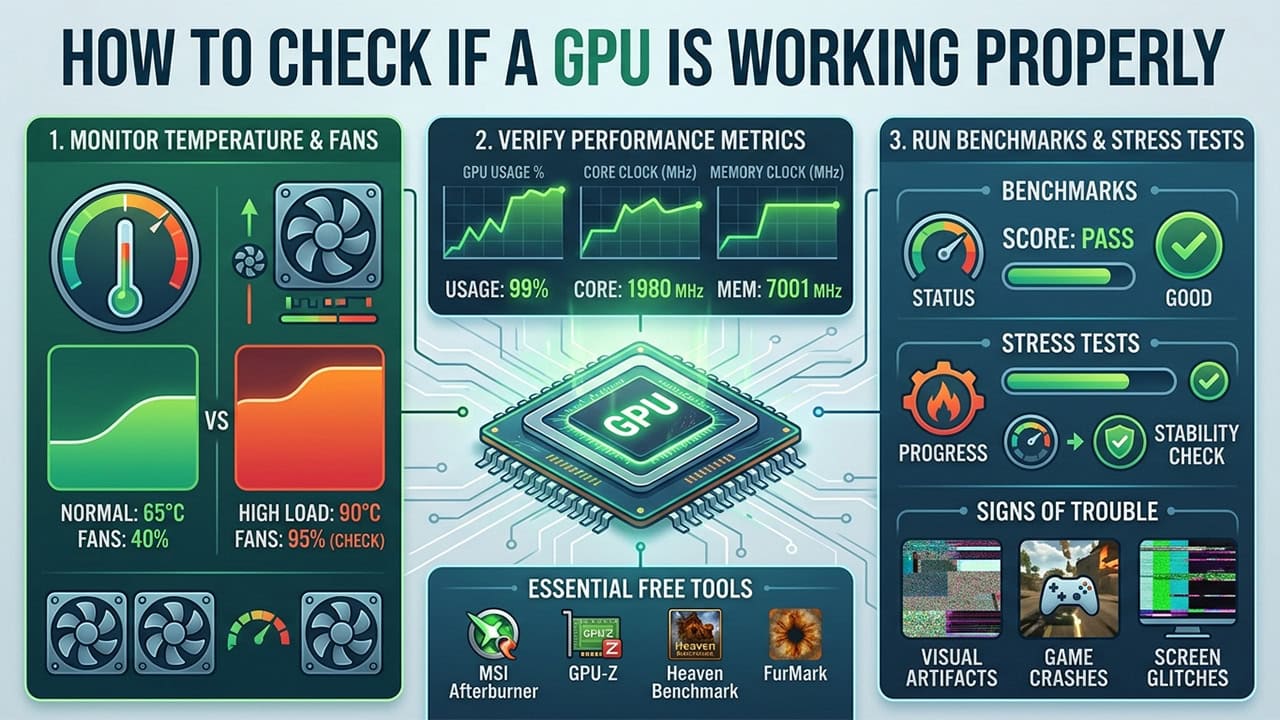
How to Check If a GPU Is Working Properly
Test a graphics card with Task Manager and MSI Afterburner, plus physical checks and common faults.

Why Do Computers Slow Down With Age?
The real causes behind an aging PC slowing down, and the fixes that bring it back without a new machine.
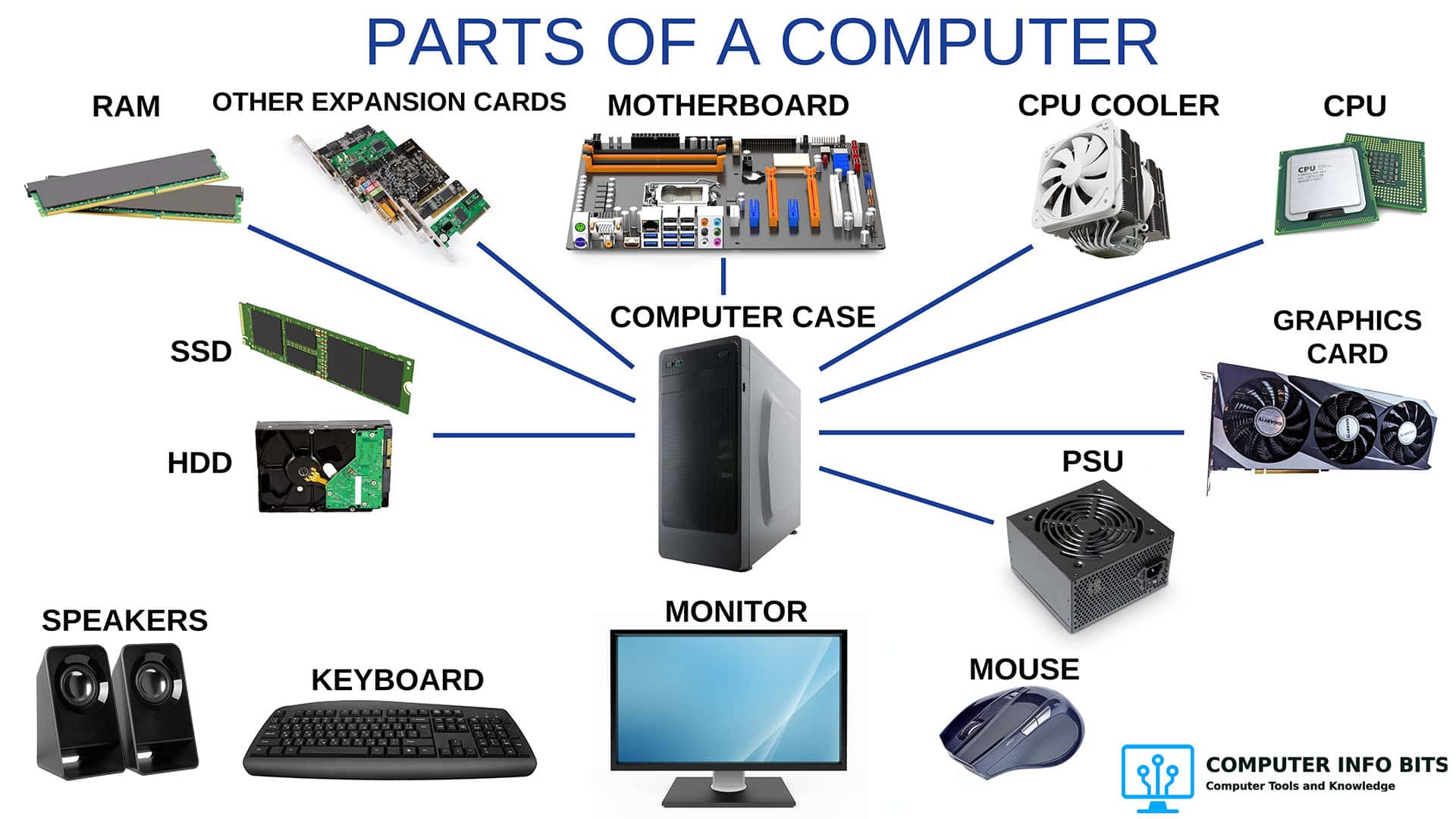
Parts of a Computer and Their Functions
A complete breakdown of every major PC component, so you can match a listing against what is really inside.