How to Set Up Windows Auto Login
By Marlo Strydom · Last updated



How to set up Windows auto login in Windows 11 is usually a five-step job with netplwiz. Start with Method 1 below. If its checkbox is missing, use the fix directly under those steps or switch to Microsoft's official Autologon tool.
Pick the Method That Fits Your PC
- Start with netplwiz: it is built into Windows and takes only a few steps.
- Use Microsoft Autologon: choose this official tool when netplwiz does not show the required checkbox or will not save the login.
- Use the registry last: it works on unusual setups, but it stores the account password as readable text.
Method 1: Set Up Windows 11 Auto Login With netplwiz
Use your account password for this method, not your Windows Hello PIN.
- Press
Windows + R, typenetplwiz, and press Enter. - Select the account that should sign in automatically.
- Clear Users must enter a user name and password to use this computer, then select Apply.
- Enter the account password in both boxes and select OK.
- Restart the computer and confirm that it opens the desktop without asking for a password.
Security warning: anyone who can start this computer can open the configured account. Microsoft's automatic logon guidance recommends using it only when the computer is physically secure.
If the checkbox is missing
Windows may hide the checkbox when the Windows Hello-only setting is enabled. The wording and location can vary between Windows builds.
- Open Settings > Accounts > Sign-in options.
- Under Additional settings, turn off For improved security, only allow Windows Hello sign-in for Microsoft accounts on this device. Microsoft explains this control in its passwordless sign-in guide.
- Close and reopen
netplwiz, then check whether the box has returned.
If it is still missing, use Microsoft Autologon below instead of changing undocumented settings.
Method 2: Use Microsoft Sysinternals Autologon
Microsoft Sysinternals Autologon configures Windows' built-in automatic logon feature. It stores the password as an encrypted LSA secret instead of a readable registry value. Microsoft warns that someone with administrator rights can still retrieve and decrypt it.
- Download Autologon from the Microsoft page linked above, extract the ZIP file, and run the tool.
- Accept the license when it appears.
- Check the Username and Domain, then enter the account password.
- Select Enable and close the tool.
- Restart the computer to test the automatic sign-in.
Method 3: Set Auto Login in the Windows Registry
Use this manual method only when the first two options are unsuitable. The Microsoft registry instructions confirm that it saves the password as readable text.
Before editing: in Registry Editor, right-click the Winlogon key and select Export to save a backup. Change only the values listed below.
- Press
Windows + R, typeregedit, and press Enter. - Open
HKEY_LOCAL_MACHINE\SOFTWARE\Microsoft\Windows NT\CurrentVersion\Winlogon. - Find or create a String Value named
DefaultUserName, then enter the account name. - Create a String Value named
DefaultPassword, then enter the account password. - Find or create a String Value named
AutoAdminLogon, then set it to1. - If the computer belongs to a domain, create
DefaultDomainNameand enter the fully qualified domain name. - Close Registry Editor and restart the computer.
Local and Microsoft Accounts Need Different Login Details
Windows can use a local account that exists only on one computer or a Microsoft account linked to an email address. Microsoft explains the difference in its Windows account guide.
- Local account: use the Windows username and its password. Autologon may fill the computer name into the Domain box.
- Microsoft account: use the account's email address and Microsoft account password. Do not enter the Windows Hello PIN.
- Work, school, or domain account: an organization policy may block automatic logon. Check with the computer administrator instead of trying to bypass the policy.
If Windows 11 Auto Login Does Not Work
| Problem | What to check |
|---|---|
| The netplwiz checkbox is missing | Turn off the Windows Hello-only setting, close netplwiz, and open it again. Use Microsoft Autologon if the box remains unavailable. |
| Windows shows another account tile | Turn auto login off, then configure it again with the correct username and account password. A PIN will not work in the password box. |
| The registry setting returns to 0 | Confirm that the DefaultPassword String Value exists. Windows disables AutoAdminLogon when that value is missing. |
| A managed computer still asks for a password | Group Policy, a logon message, domain connectivity, or account restrictions can block automatic logon. Ask the administrator responsible for the computer. |
Auto Login at Startup, After Restart, and After Sleep
The methods above cover startup and restart. Waking from sleep is a separate setting under Settings > Accounts > Sign-in options. Changing the post-sleep requirement to Never leaves the account open whenever the computer wakes. Microsoft's device security guidance recommends requiring sign-in after sleep, so leave that protection enabled unless the computer is kept in a secure location.
How to Turn Auto Login Back Off
- netplwiz: select the account, restore Users must enter a user name and password to use this computer, and select Apply.
- Microsoft Autologon: run the tool and select Disable.
- Registry: set
AutoAdminLogonto0and deleteDefaultPassword.
Related Posts

Understanding the BIOS and Its Main Functions
What happens at startup before Windows loads and hands you the sign-in screen: POST, the boot loader, Secure Boot, and UEFI.

How to Check If a CPU Is Working Properly
Boot checks, Task Manager, temperatures, and stress tests to confirm your processor is healthy.
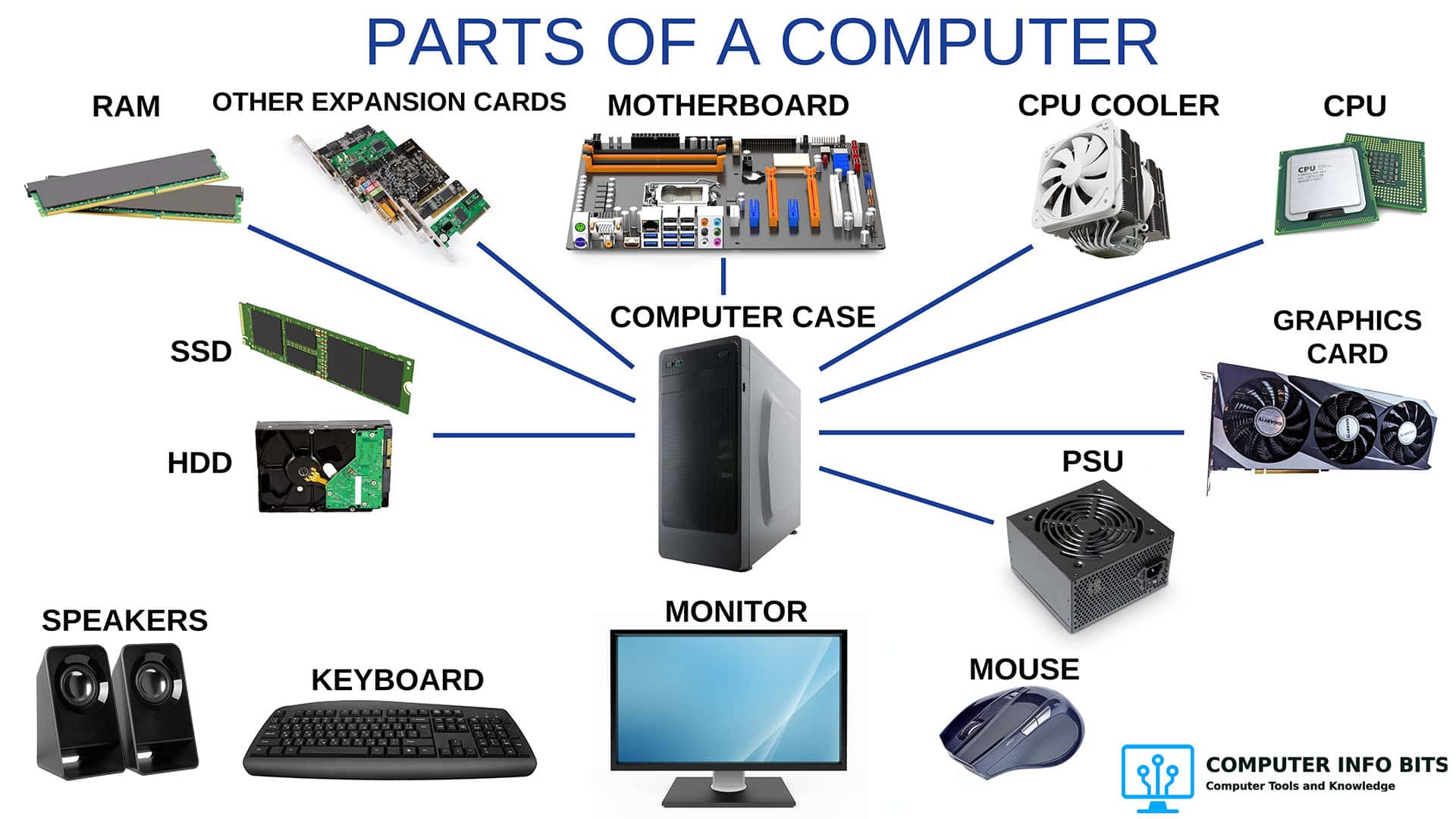
Parts of a Computer and Their Functions
A plain-language breakdown of every major PC component and the job each one does.