The Benefits of Dual Monitors for Gaming
By Marlo Strydom · Last updated



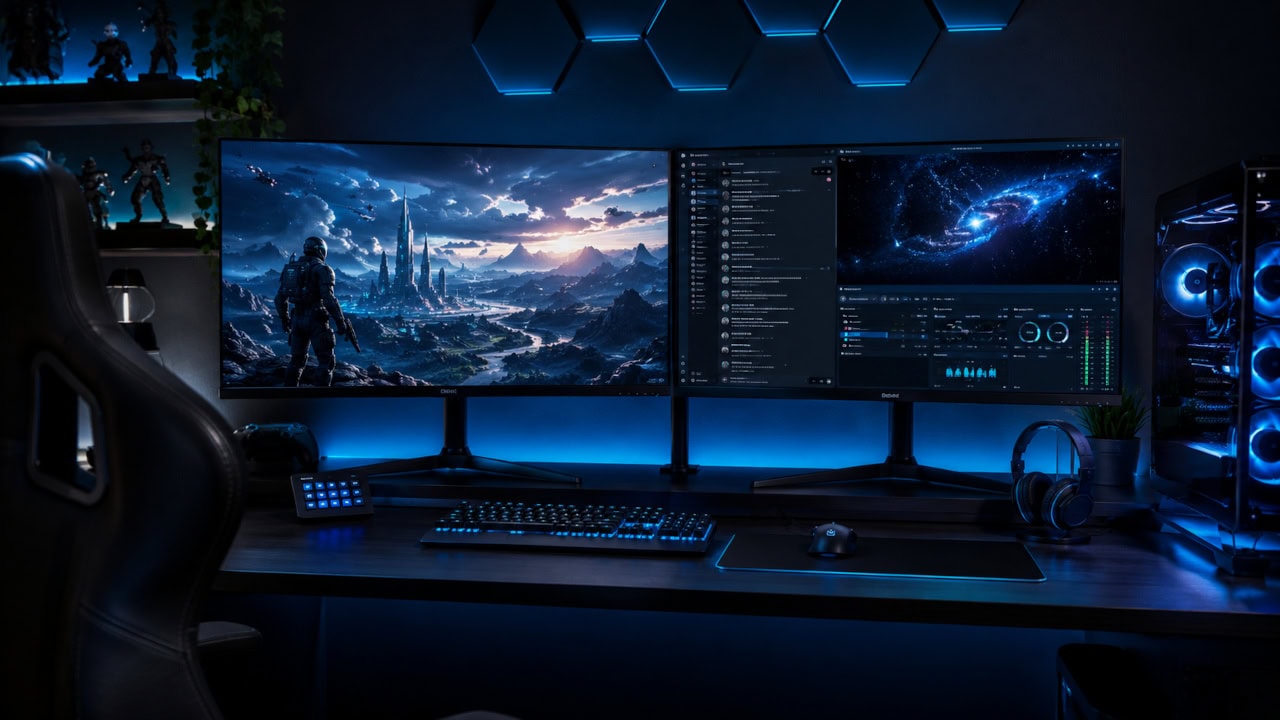
The first time you play with a second screen, the thing you notice is what stops happening: the alt-tabbing. No more dropping out of a game to read a Discord message, glance at a wiki, or check why your frame rate just tanked. Everything that used to live behind your game now sits beside it. For most people that, more than any single feature, is the benefit of a dual-monitor gaming setup.
But a second monitor is not free of trade-offs, and a lot of guides skip the parts that actually matter: how it affects your frame rate, what it does to power and heat, and why mismatched monitors can quietly break the smooth experience you paid for. This covers both sides honestly so you can decide whether it is worth it for how you play.
1. No More Alt-Tabbing
This is the headline benefit, and it sounds smaller than it feels. Modern games rarely live in isolation. You are on voice chat, following a build guide, watching a map tool, or keeping an eye on a queue. On one screen, every one of those pulls you out of the game. On two, they just sit on the second panel while the game keeps running on the main one.
- Voice and chat: keep Discord or your team's voice app open and visible, so you can see who is talking and read links without leaving the match.
- Guides and references: a wiki, a build planner, an interactive map, or a quest tracker stays open beside the game.
- Queues and launchers: sit in a matchmaking queue or a download while you do something else on the main screen.
- Music and media: control your playlist or a video without it stealing focus from the game.
One setup tip that makes or breaks this: run your game in borderless windowed mode rather than exclusive fullscreen. In exclusive fullscreen, clicking the second monitor can minimize the game or cause a brief flicker each time. Borderless lets you move the mouse freely between screens with no interruption, which is the whole point of the second monitor. The trade-off is a tiny bit of input latency versus true fullscreen, which competitive players may still prefer to avoid.
2. Live Performance Monitoring While You Play
The second screen is the natural home for a hardware monitor. Instead of an overlay cluttering your game, you put the numbers on the panel next to it and glance over when something feels off. This is genuinely useful for spotting problems in the act rather than guessing afterwards.
Tools like HWiNFO64 or MSI Afterburner can sit on the second monitor showing GPU and CPU temperature, clock speeds, frame rate, and frame times in real time. If your game stutters, you can watch whether the cause is the graphics card maxing out, the processor falling behind, or a temperature spike forcing a slowdown. It is the easiest way to catch thermal throttling as it happens, and to see whether you are actually hitting the frame rate your setup should deliver.
3. A Far Easier Streaming and Recording Setup
If you stream or record, the second monitor stops being a nice-to-have and becomes close to essential. Live broadcasting means juggling several things at once, and trying to do it over the top of a fullscreen game is miserable.
- OBS or Streamlabs lives on the second screen, so you can switch scenes, mute sources, and watch your stream's health without touching the game.
- Chat moderation: read and reply to viewers in real time instead of catching up between matches.
- Alerts and audio: keep an eye on follower alerts and audio levels so you catch a dead mic before your viewers do.
4. Wider Views in Games That Support It
A smaller group of games can stretch a single image across both monitors, giving a genuinely wider field of view. This is called surround gaming (NVIDIA Surround or AMD Eyefinity), and it shines in cockpit-style games where peripheral vision matters.
- Racing and flight sims: the side screens show your mirrors, wings, or instruments, which is immersive and practically useful.
- Space and strategy games: more of the battlefield or cockpit on screen at once.
Be realistic about surround. It only works in games that support it, the bezels run a thick black line right through the middle of your view unless you buy thin-bezel monitors, and it demands a lot more from your graphics card, since the GPU is now drawing two or three screens' worth of pixels at once. For most people the multitasking benefits below are the real reason to go dual, and surround is a bonus for a few specific genres.
Usually not in any way you would notice. If the second screen is just showing static things, a chat window, a wiki, a hardware monitor, the cost to your game is tiny, often a percent or two of GPU load. There are two real exceptions. The first is video: playing a YouTube video or a Twitch stream on the second monitor makes the GPU work continuously and keeps it in a higher power state, which can shave frames and add heat during a demanding game. The second is surround, where the game itself is drawn across both screens; that genuinely multiplies the GPU's workload.
One side effect worth knowing: simply having two monitors connected often stops the GPU from dropping to its lowest idle clocks, so it sits a little warmer and draws a little more power even at the desktop, which feeds into how much energy the whole PC uses.
The Trade-offs Nobody Mentions
Here is where most dual-monitor guides go quiet. These are the issues that turn a great upgrade into a frustrating one, and all of them are avoidable if you know about them first.
Mismatched Refresh Rates Can Cause Stutter
This is the big one. If you pair a fast 144Hz or 165Hz gaming monitor with an old 60Hz second screen, some systems struggle to drive both cleanly. On certain setups, anything moving on the 60Hz panel (a video, an animated chat, even a moving mouse) can introduce micro-stutter on the gaming monitor, and a mismatch can interfere with variable refresh rate (G-Sync or FreeSync) on the main display. Modern GPUs and drivers handle this far better than they used to, but the safe move is to match refresh rates where you can, or at least be aware this is the first thing to check if you see stutter after adding a second screen. Our Monitor Refresh Rate Calculator helps you sanity-check what each panel is actually running.
A Linux catch worth knowing: this is more pronounced on Linux than on Windows. Under X11 (Xorg), the desktop is driven as one stitched display that usually syncs to a single refresh rate, so a fast panel can get capped to a slower second monitor's rate, or stutter whenever something moves on the slow one. I ran into exactly this on a mixed 144Hz and 60Hz setup the other day.
Wayland drives each monitor at its own rate and generally fixes it. The catch is NVIDIA: you may need a recent driver (with explicit sync support) and an up-to-date compositor before Wayland behaves, which is why plenty of NVIDIA users are still on X11.
If you are stuck with the problem, three things help, easiest last:
- Match refresh rates where you can, so there is nothing to cap in the first place.
- On X11, set the fast monitor as primary and let games run without the compositor in the way.
- Best of all, split the outputs. Plug the second display into your motherboard's onboard graphics port so the dedicated card only ever drives the gaming monitor. It needs a CPU with integrated graphics enabled in the BIOS, but it fixes the problem completely, lets the dedicated card idle down fully when you are not gaming, and works the same on Windows. It is also perfect when the second screen is really just feeding a soundbar over HDMI, since an audio-only display needs no graphics power at all.
The Second Monitor Adds Heat and Power Draw
As covered above, two connected displays often keep the graphics card from idling down fully, so it runs a touch hotter and hungrier even when you are not gaming. It is a small effect, but if your case already runs warm it is one more reason to keep an eye on GPU temperatures. The extra screen also adds to your total load, so if you run your setup on a battery backup, factor both panels in when you size a UPS for your PC.
Your Graphics Card Needs the Headroom
For ordinary dual-monitor use (game on one, light apps on the other) almost any modern card copes fine. For surround gaming across both panels, you need real GPU muscle, because you have doubled or tripled the pixels being drawn. If you are weighing a second screen against a graphics upgrade, it is worth confirming your CPU and GPU are balanced first, so the parts you have are not already holding each other back.
What to Look for When Pairing Two Monitors
You do not need two identical monitors, but a few things make the experience far smoother. If you are still choosing panels, our guide to monitor types and their differences covers the panel technologies in depth.
| What to match | Why it matters | How fussy to be |
|---|---|---|
| Refresh rate | Mismatches can cause stutter and interfere with G-Sync/FreeSync | Match if you can |
| Height / stand | Tops aligned keeps your eyes and neck comfortable | Worth adjusting |
| Resolution | Different resolutions are fine; just set scaling per display | Relaxed |
| Bezel thickness | Only critical for surround, where a thick bezel splits the image | Relaxed (unless surround) |
| Panel type / colour | Mismatched colour is jarring side by side but harmless to gaming | Personal preference |
Quick Setup Checklist
- Set the gaming monitor as your primary display in Windows so games and the taskbar default to it.
- Confirm each monitor's refresh rate in Settings > System > Display > Advanced display, not just that it is plugged in. Windows often defaults a fast panel to 60Hz.
- Run games in borderless windowed for friction-free multitasking, or exclusive fullscreen if you want the lowest latency and do not mind the alt-tab behaviour.
- Put only light apps on the second screen while gaming, and avoid running video there during demanding sessions.
- Use good-quality DisplayPort or HDMI cables rated for your resolution and refresh rate, since a weak cable is a common cause of dropouts and black flickers.
Is It Worth It?
For anyone who chats while they play, follows guides, streams, or likes to keep an eye on their hardware, a second monitor is one of the best value upgrades you can make, and the benefit shows up every single session. It will not raise your frame rate, and it is not a substitute for a better graphics card if raw performance is what you are after. But as a quality-of-life change, it is hard to beat, and once you have gamed with two screens, going back to one feels like working with one hand.
Related Posts
What Is a Monitor and the Various Types
Choosing panels for a dual setup? IPS, VA, OLED, and TN compared, with resolutions, refresh rates, and connections.
What FPS Do You Need for Gaming?
Your monitor sets the ceiling and the genre sets the target. Working numbers per genre, plus a calculator.
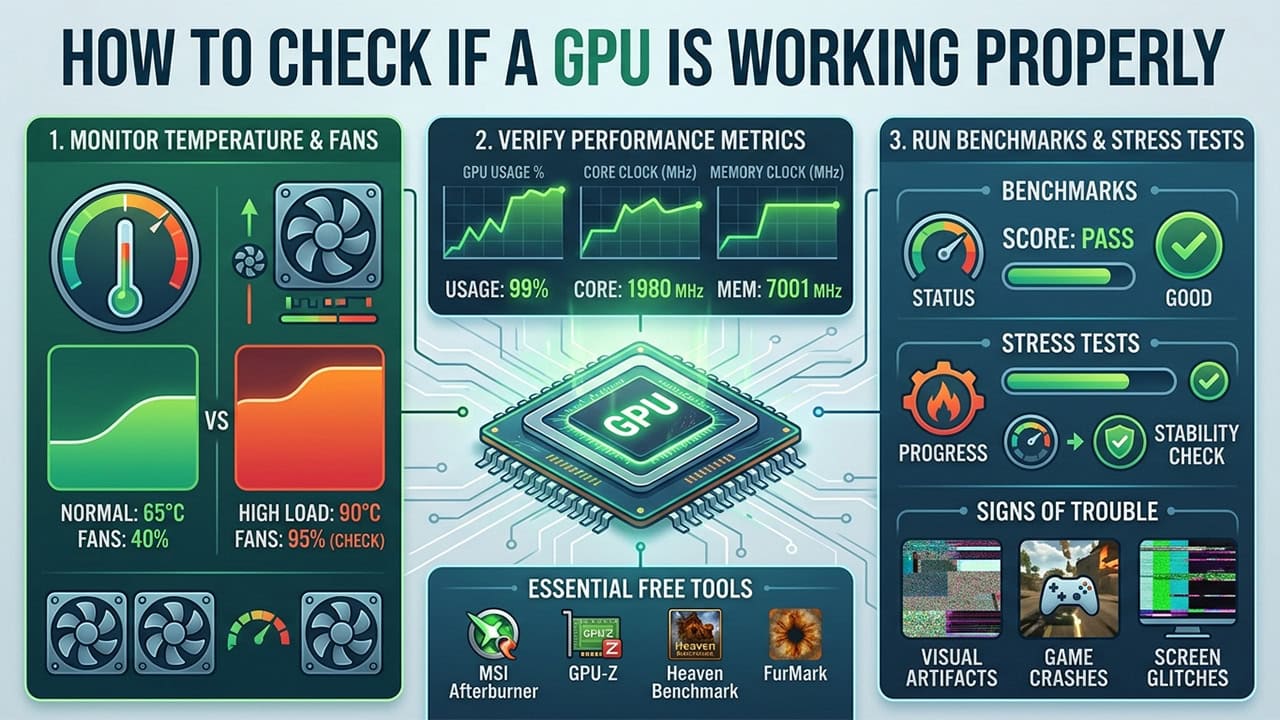
How to Check If a GPU Is Working Properly
The second screen is the natural home for a hardware monitor. How to read GPU temps, usage, and stability.
How Much Energy Do Gaming Computers Use?
A second monitor keeps the GPU from idling fully. What a gaming PC draws and costs to run per year.