Parts of a Computer and Their Functions (With Diagram)
By Marlo Strydom · Last updated
Knowing about the parts of a computer and their functions gives you a good start on understanding how computers work. It will set you up to explore more computer guides and tutorials later on.
Even though this guide follows a desktop PC, laptops use nearly all of the same parts. The desktop vs laptop section near the end covers how they differ.
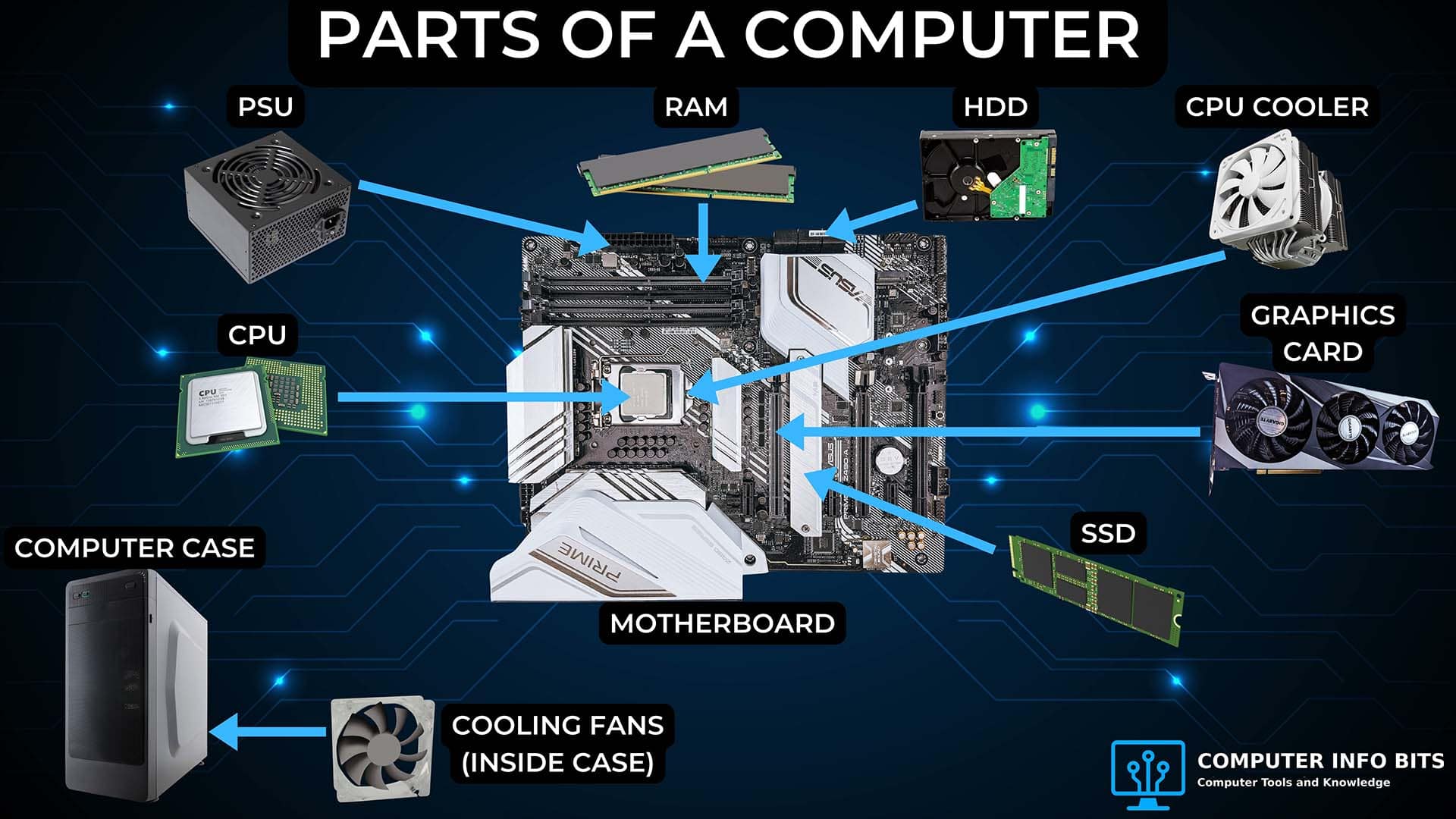
1. CPU (Central Processing Unit)
The CPU, or central processing unit, is the brain of the computer. It carries out the instructions your computer is given. Every time you click a button, open a file, or load a webpage, the CPU handles those commands billions of times each second. A part inside it called the arithmetic logic unit (ALU) does the math and the yes or no decisions that software needs.
In a desktop, the CPU sits in a socket on the motherboard. Modern CPUs from Intel and AMD have several cores, which lets them work on more than one task at the same time.
- Coordination: Tells the rest of the system what work to do.
- Performance impact: Affects how fast the PC feels, how smoothly games run, and how many apps you can use at once.
The CPU and the graphics card work together as a team, so a weak CPU can hold back a strong GPU and cause a performance bottleneck. A struggling processor shows up in other ways too. If yours is crashing or behaving oddly, here is how to check whether the CPU is working properly.
2. Motherboard
The motherboard is the main circuit board inside your computer. Every other part either plugs into it or connects to it, and its job is to hold those parts together and move data and power between them. It holds the CPU, the memory slots, the expansion slots, the chipset, and the BIOS or UEFI firmware.
- CPU socket: Holds the processor.
- RAM slots: Hold the memory sticks.
- PCIe slots: Connect graphics cards, add-on cards, and some fast storage drives.
- Chipset: Controls which features and ports the board can use.
- I/O panel: The row of ports at the back for plugging in outside devices and networking.
3. Power Supply Unit (PSU)
The PSU, or power supply unit, changes the high-voltage power from your wall outlet into the lower-voltage power your PC parts can safely use. Cables from the PSU carry that power to the motherboard, CPU, graphics card, storage drives, and fans.
Safety features built into the power supply also help protect your parts from power surges and voltage problems. Because the PSU has to provide enough power for everything in the build at once, a PSU wattage calculator can help you work out how much power your parts need.
4. RAM (Random Access Memory)
RAM, or random access memory, is the fast short-term memory your computer uses for whatever you are doing right now. When you open a browser, start a game, edit a document, or switch between programs, the data in use is kept in RAM. The CPU can reach RAM far more quickly than it can reach a storage drive, which is why RAM is used for active work.
RAM is volatile, which means everything in it is wiped when the computer turns off. The more RAM a computer has, the more things it can keep open and work on at the same time.
5. Storage: SSDs, HDDs, and Portable Drives
Storage is the long-term memory for your operating system, apps, games, photos, documents, and backups. Unlike RAM, storage keeps your data safe even when the computer is turned off.
Hard Disk Drives (HDDs)
A hard disk drive stores files on spinning magnetic disks that a small read/write head moves across. Because of the moving parts, HDDs are slower and easier to damage than SSDs, but they can hold a large amount of data, which makes them handy for backups and media libraries.
Solid State Drives (SSDs)
A solid-state drive stores files on flash memory chips and has no moving parts. Because it has nothing to spin up, an SSD reads and writes data much faster, which makes the whole computer feel quicker as Windows, apps, and games all load more quickly.
Portable Storage Devices
Portable storage devices let you move files from one computer to another. USB flash drives are handy for documents and installers, SD cards are common in cameras and laptops, and external hard drives or external SSDs are used for backups and large files.
6. GPU (Graphics Processing Unit)
The GPU, or graphics processing unit, draws everything you see on the screen. From desktop windows to videos and 3D games, the graphics card works out and draws every single pixel. While the CPU is best at handling complex tasks one step at a time, the GPU is built to handle thousands of simpler tasks all at once, which is exactly what drawing an image needs.
- Dedicated graphics card: A separate card with its own video memory. Used for gaming, 3D work, and creative apps.
- Integrated graphics: Built into the processor. Uses less power and is fine for office work and watching videos.
- VRAM: The graphics card's own memory, used to hold textures and images while they are being drawn.
- Display outputs: HDMI, DisplayPort, and USB-C connections that send the picture to monitors and TVs.
7. Input and Output Devices
Input Devices
Input devices send information and commands to the computer.
- Keyboard: Sends text and shortcut commands.
- Mouse or touchpad: Controls the pointer and what you click on.
- Microphone: Picks up voice and other audio.
- Webcam: Records video for calls, streaming, and recording.
- Scanner: Turns paper documents into digital files.
- Game controller or joystick: Gives you smooth control for games and simulators.
Output Devices
Output devices show or play results back to the user. The monitor is the main output device, but speakers, printers, and projectors are output devices too.
- Monitor: Shows the desktop, videos, games, and apps.
- Speakers or headphones: Play sound from the sound card or built-in audio.
- Printer: Makes paper copies of text and images.
- Projector: Shows the screen image on a large surface.
8. Computer Case
The computer case holds all the parts together in one place and protects them from dust, knocks, and bumps. It also guides air through the system to keep parts cool, holds the storage drives, gives you places to mount fans, and provides the front buttons and ports you use every day.
- Cable routing: Channels behind the motherboard tray keep cables tidy and out of the way of airflow.
- Dust filters: Mesh filters over the air intakes stop dust from building up inside.
9. Cooling and Airflow
Cooling matters because the CPU and GPU make a lot of heat when they work hard. If temperatures climb too high, the computer may slow down through thermal throttling, where the chip slows itself down to cool off, or it may crash or shut down to protect itself. The job of the cooling system is to move that heat away before it becomes a problem.
Most systems use air cooling. A heatsink sits on top of the processor, the heat spreads into its metal fins, and a fan blows air across them to carry the heat away. Case fans then pull cool air in and push warm air out. Liquid cooling does the same job using a pump, liquid coolant, and a radiator to move heat away from the hottest parts.
- Stock cooler: The basic cooler that comes included with some processors.
- Tower air cooler: A larger add-on heatsink with one or two fans.
- AIO liquid cooler: A sealed liquid cooler with a pump and a radiator.
- Thermal paste: Fills the tiny gaps between the CPU and the cooler so heat passes across more easily. The same compound sits under a graphics card cooler, and replacing dried GPU thermal paste is a common way to cool an overheating card.
Good fan placement is the best way to stop heat from building up. Balanced airflow in and out keeps temperatures down and helps stop dust from getting in through the gaps in the case. If you are not sure your fans are balanced, the PC airflow calculator can tell you whether more air is going in than coming out.
10. Connectivity, Ports, and Networking
Today's computers use wired and wireless connections to get on the internet, share files, connect other devices, and send video to displays. Some ports are built into the motherboard, while others come from the case, graphics card, add-on cards, or external adapters.
Wired Connections
Ethernet connects a computer directly to a router, modem, or network switch. A wired connection is usually faster and more reliable than Wi-Fi, which is why it is the better choice for gaming, large file transfers, and stable video calls.
If several people share the same connection, an internet speed requirements calculator can help estimate how much bandwidth the household actually needs.
Wireless Connections
Wi-Fi connects laptops and desktops to a wireless router without cables. Bluetooth is used for short-range devices such as keyboards, mice, headphones, speakers, and controllers.
Common Ports and Connectors
- USB: Common port for devices, storage, charging, and accessories.
- USB-C: A connector that plugs in either way. Used for data, charging, displays, and docks, depending on what the device supports.
- HDMI: Carries video and audio to monitors and TVs. If your gaming PC will not connect to a TV, the HDMI cable and input settings are the first things to check.
- DisplayPort: Common on graphics cards and high-refresh-rate monitors.
- Ethernet: RJ-45 network port for wired internet and home networks.
- Audio jacks: 3.5mm ports for microphones, headphones, speakers, and line-in devices.
How Many Parts Does a Computer Have?
There is no single fixed number of computer parts. The total changes with the design and the devices connected to it. IBM's computer hardware overview groups hardware into core internal parts and external devices that handle processing, storage, input, output, and communication. For a clear desktop overview, this guide groups the hardware into ten main categories.
The CPU, motherboard, RAM, and storage drive are the four core internal parts. The other categories cover power, graphics, input and output devices, the case, cooling, and connectivity. One category can contain several physical items, so a list of ten categories does not mean every computer has exactly ten individual parts.
Internal and External Parts
Another way to group computer components is by where they sit. Internal parts live inside the case, while external parts plug in from the outside and are often called peripherals.
- Internal parts: The CPU, motherboard, RAM, storage drives, graphics card, power supply, and the fans or coolers that keep them cool.
- External parts: The monitor, keyboard, mouse, speakers, printer, webcam, and anything else that connects through the ports.
Parts of a Computer System
A computer system means the complete setup rather than one machine. It is made up of the system unit, which is the case together with all the internal parts, plus the peripherals plugged into it and the software that runs on it.
You may also hear the whole tower called the CPU, especially in classrooms. Strictly speaking the CPU is the small chip covered earlier and the tower is the system unit, but people use both names for the same box.
Parts of a Desktop Computer vs a Laptop
Desktops and laptops perform the same basic jobs, but they arrange their parts differently. Intel's laptop and desktop comparison explains how their physical designs affect portability, cooling, connections, repairs, and upgrades.
| Feature | Desktop Computer | Laptop Computer |
|---|---|---|
| Main layout | Internal parts sit in a separate case. | Internal parts fit inside one compact body. |
| Display and controls | Usually uses a separate monitor, keyboard, and mouse. | Includes a screen, keyboard, and touchpad. External devices are optional. |
| Power | Uses an internal power supply and needs a wall outlet. | Uses a battery and a power adapter. |
| Cooling | The larger case has more room for fans, heatsinks, and airflow. | The smaller body has less room for cooling parts and airflow. |
| Upgrade options | Many parts use modular connections and can be replaced separately. | Options depend on the model. RAM or storage may be replaceable, while the CPU and GPU are often fixed to the board. |
| Repair access | The case usually opens to give direct access to individual parts. | Opening the body and reaching a part can require model-specific steps. |
| Portability | Usually stays in one place and depends on separate devices. | Combines the main devices and battery in a body made for travel. |
Once you know what each part does, our free PC tools help you put it to use, from checking whether a CPU and graphics card make a good pair to working out how much power a build needs.
Prefer to watch? Here is a summary video covering these components.



Related Posts
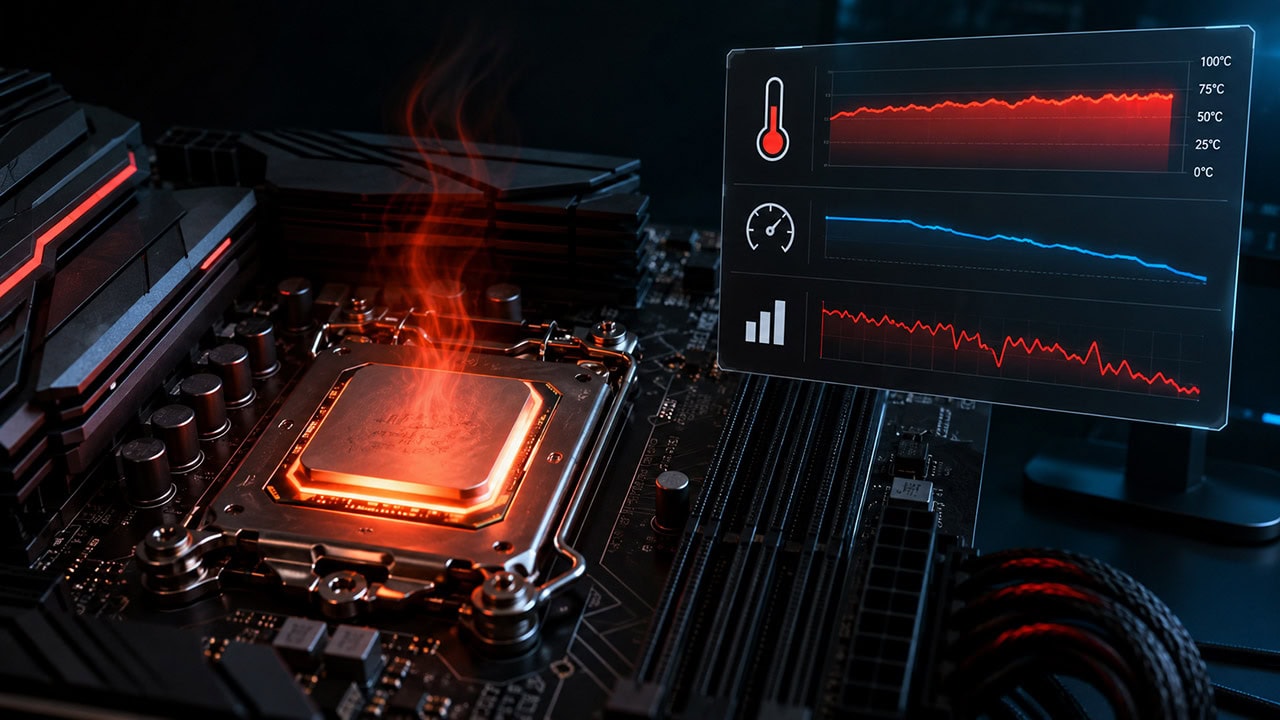
How to Know If Your CPU Is Thermal Throttling
Spot the signs of a CPU slowed by heat, confirm it with HWiNFO64, and learn the Intel and AMD limits that trigger it.
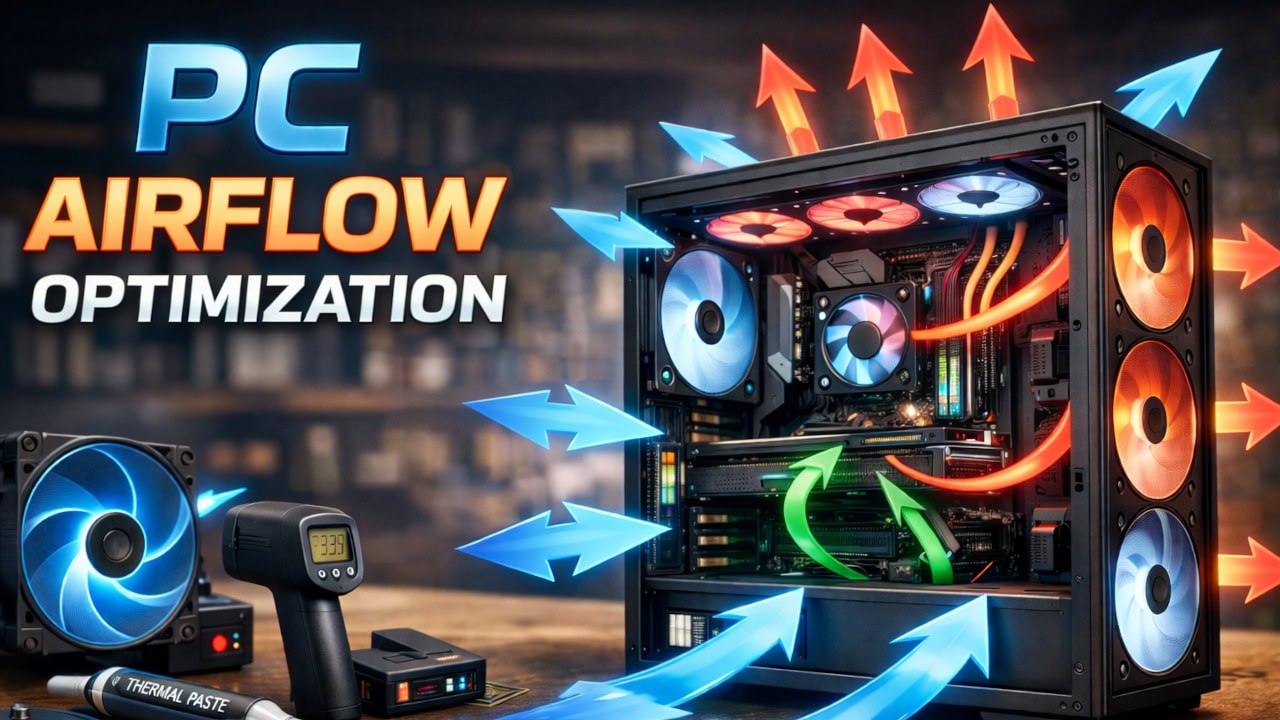
PC Airflow Optimization: How to Cool Your Computer
Set up your case fans correctly to keep temperatures low and reduce dust buildup.
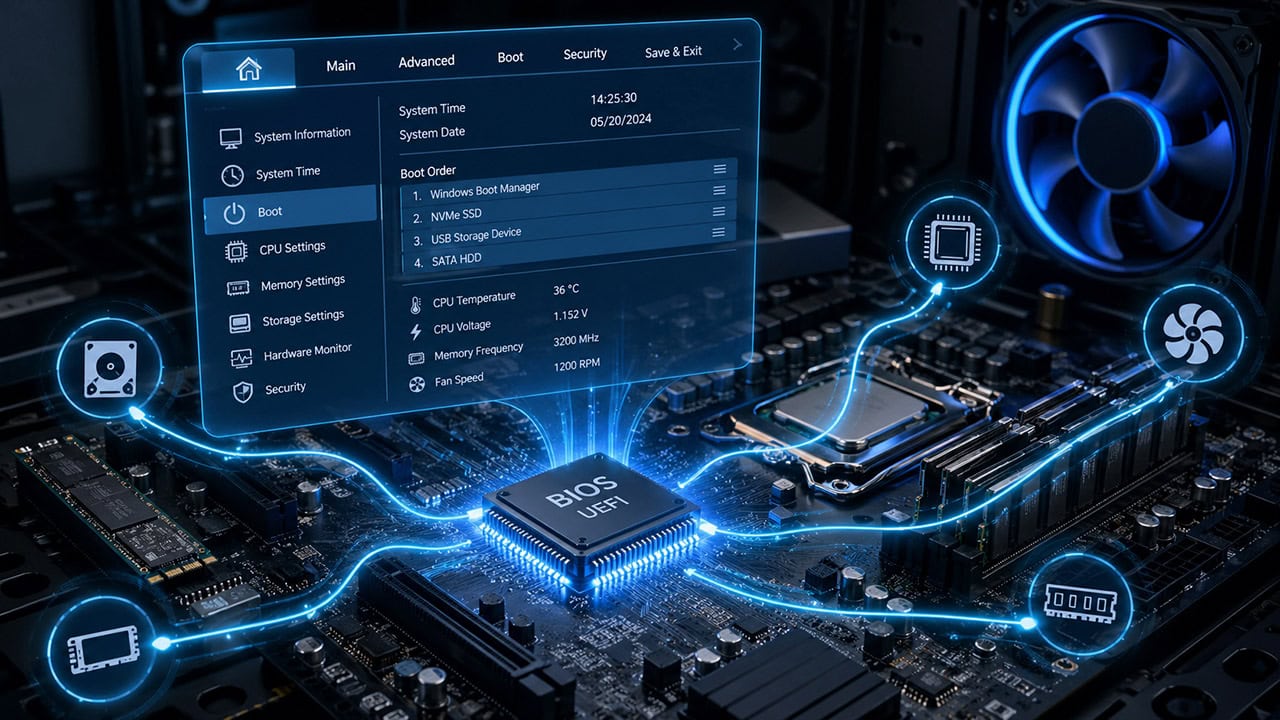
Understanding the BIOS and Its Main Functions
What POST does, the BIOS Setup Utility, CMOS, Secure Boot, overclocking, and Legacy BIOS vs UEFI explained.